
(The Payroll Import feature is an optional cost module. If you have not
purchased this option, it will not appear on your menu.)
To import data into the Daily Payroll file, go to the Payroll menu, select Daily Payroll Entry, then Import Data.
The following window will appear:

Once you have supplied any required default values, selected the configuration
file, and entered the path and filename of the file to import, you can click on the
Import button to begin the process. The progress bar at the bottom of the
window will show the progress of the import operation, and when it is done, the
program will display a message indicating how many records were entered.
Payroll data is always imported directly into the Daily Payroll file. The entries
will be imported with the operator name of the person who imported them. This
means that if one person imported entries and someone else needs to view or
edit them, the other person will need to enter the operator name of the person
who did the import in the Viewing entry at the bottom right corner of the Daily
Payroll window.
Once in the Daily Payroll file, you can run all of the standard reports to check
the entries, and you may use the Create Checks option on the imported entries
just as you would entries that are entered manually. If there is a problem with
the entries that have been imported, you may use the Delete All option when
viewing them to remove them from the Daily Payroll file, and import them again
after the problem has been corrected
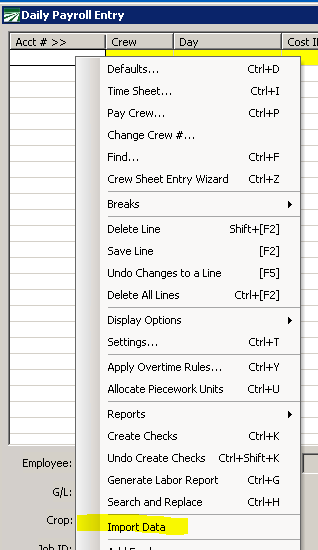
You can also access this option directly from the Daily Payroll Entry screen by right clicking and selecting Import Data.
PAGO.ini file
[DAILY_IMPORT]

FileType=CSV

AllowZeroUnits=TRUE

Header=FALSE

Field=PREMPL.ACCT_NUM

Field=PRDAILY.CREW_NUM

Field=PRDAILY.DAY

Field=PRGROWER.ACCT_NUM

Field=CROP.CROP_ID

Field=PRLABJOB.JOB_ID

Field=PRWAGTYP.CODE

Field=PRDAILY.MEMO_HRS

Field=PRDAILY.UNITS

Field=PRDAILY.RATE
Comments
0 comments
Article is closed for comments.