
Customers represent the entity for which you provide labor services. For farm labor contractors, this would be your list of customers. If customers have their own Pago account, they can be linked to your account in Pago, which will give them visibility of the timesheet data when you work for them. If you add non-linked customers, you will have visibility of timesheet data, but non-linked customers won't.
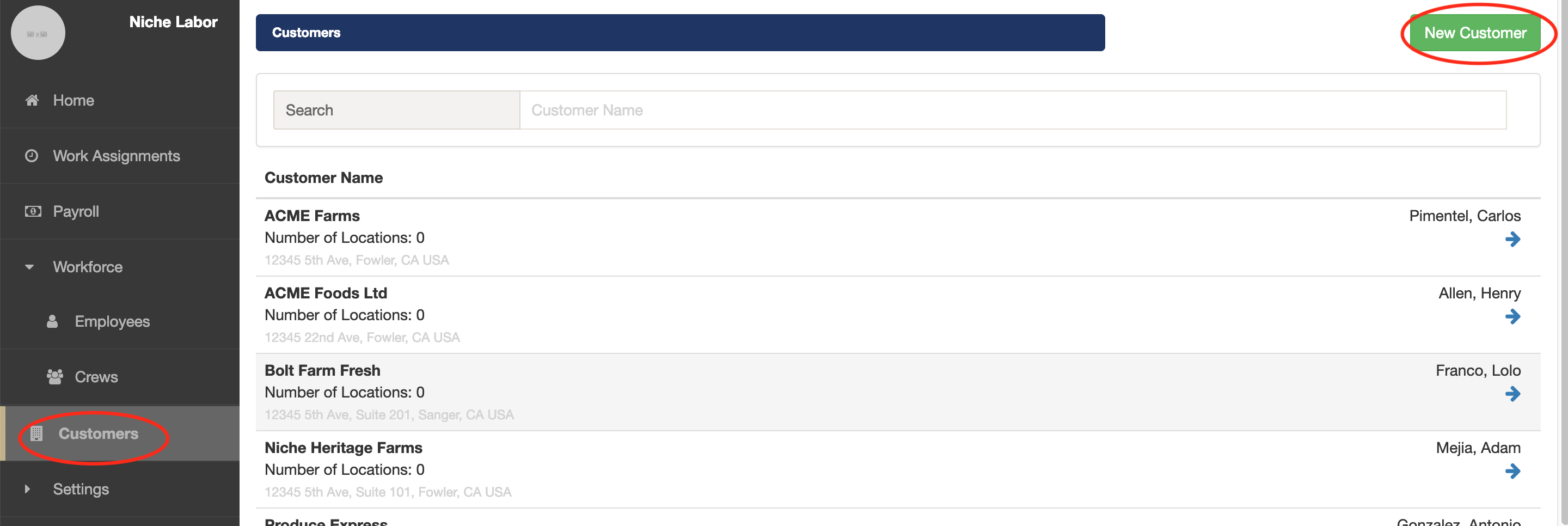
1. On the top level navigation select Customers. A list of your current customers will be displayed.
2. On the top right select New Customer.
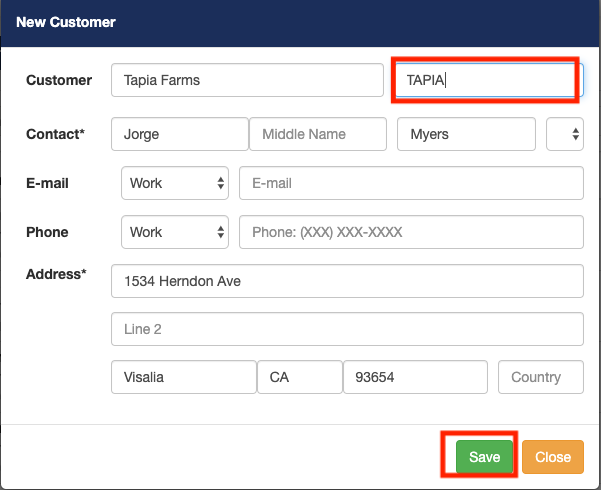
3. A new window will appear start filling in the customer information.
(Note: if you are using Datatech, the CUSTOMER CODE is the "GROWER ID" in Datatech and will be used for payroll). Please read the following article to understand payroll format. Payroll Format for Datatech. Payroll format for Famous Software.
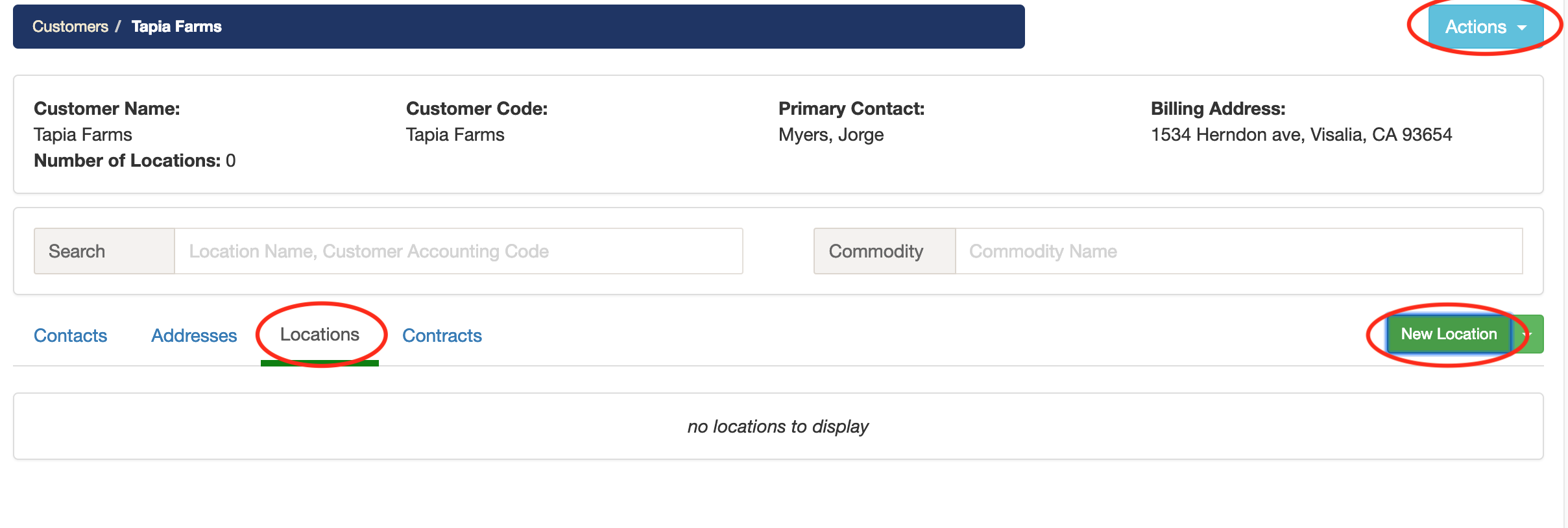
4. Select your newly created customer to edit. After selecting the newly created customer you will have the option to add locations. Locations can all be manually entered or imported from a CSV file.

5. Start by adding all the customer locations.
Locations can represent ranches, fields, crops or other location data where work is performed. Each location has a commodity associated with it, which helps set the appropriate type of work and workers compensation codes. Optionally, you can import a location list for each of your customers.
Click on the locations tab and click on new location. (Note underneath the actions tab you can edit/delete the customer).
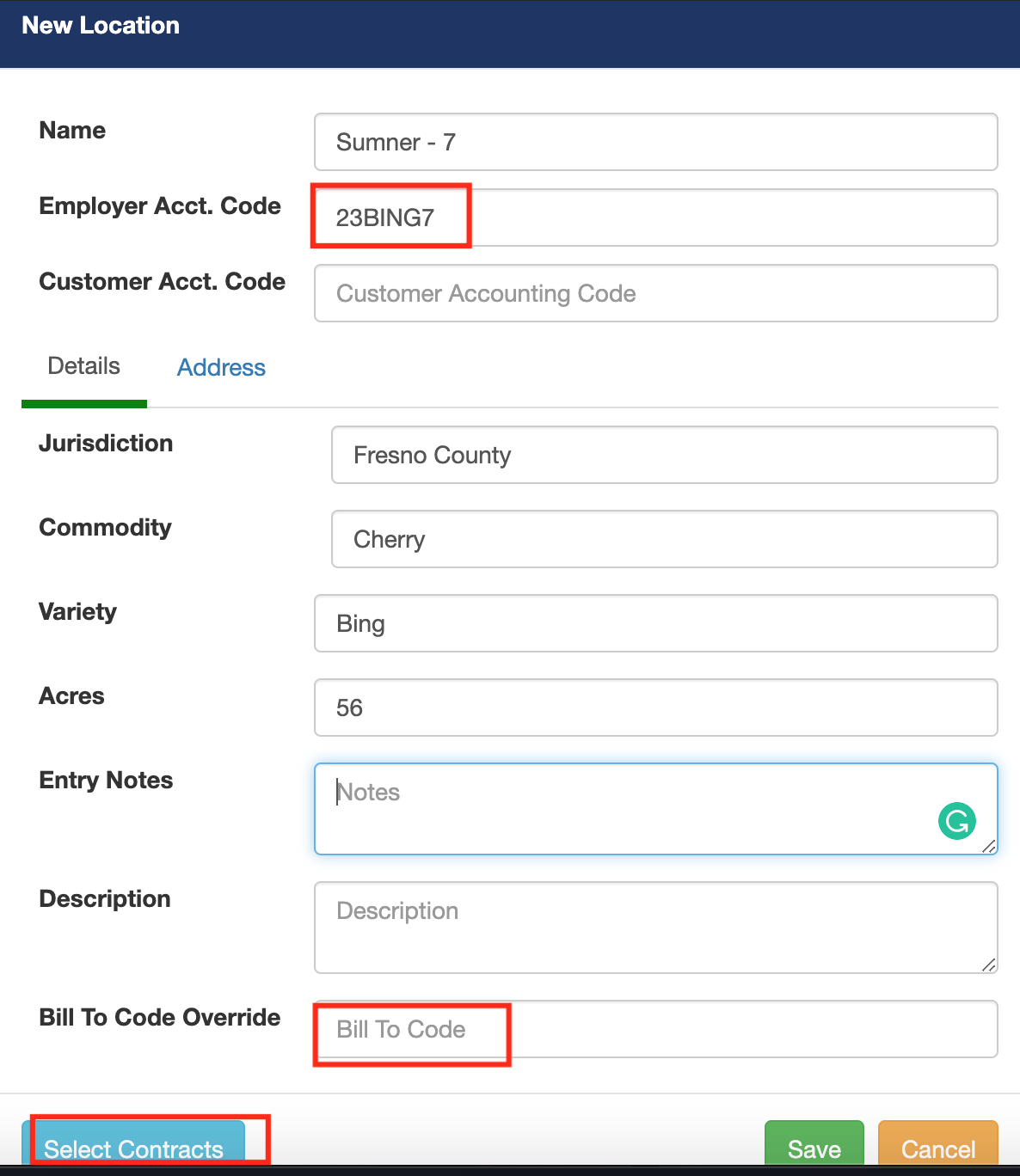
5. Now on the new locations window add the details of the location.
Employer Acct Code is for payroll purpose, so set up according to your payroll system. For more details, Payroll format.
Jurisdiction is the county in which the location is located.
Commodity determines what work-types will be available.
Bill to code override: overrides the customer code in the payroll export file.
You can also add the Address of the location.
As you add a new location, you have the option to also add the location to multiple contract by selecting the Select Contracts button.
Click Save when you are done.
Comments
0 comments
Please sign in to leave a comment.