
Locations can be created or imported. To create a new location click on Customers top level menu item to view a list of customers. Select a customer, then select the Locations tab. Within the Locations tab, click on New Location to add a new location. Note: you also have the option to import locations.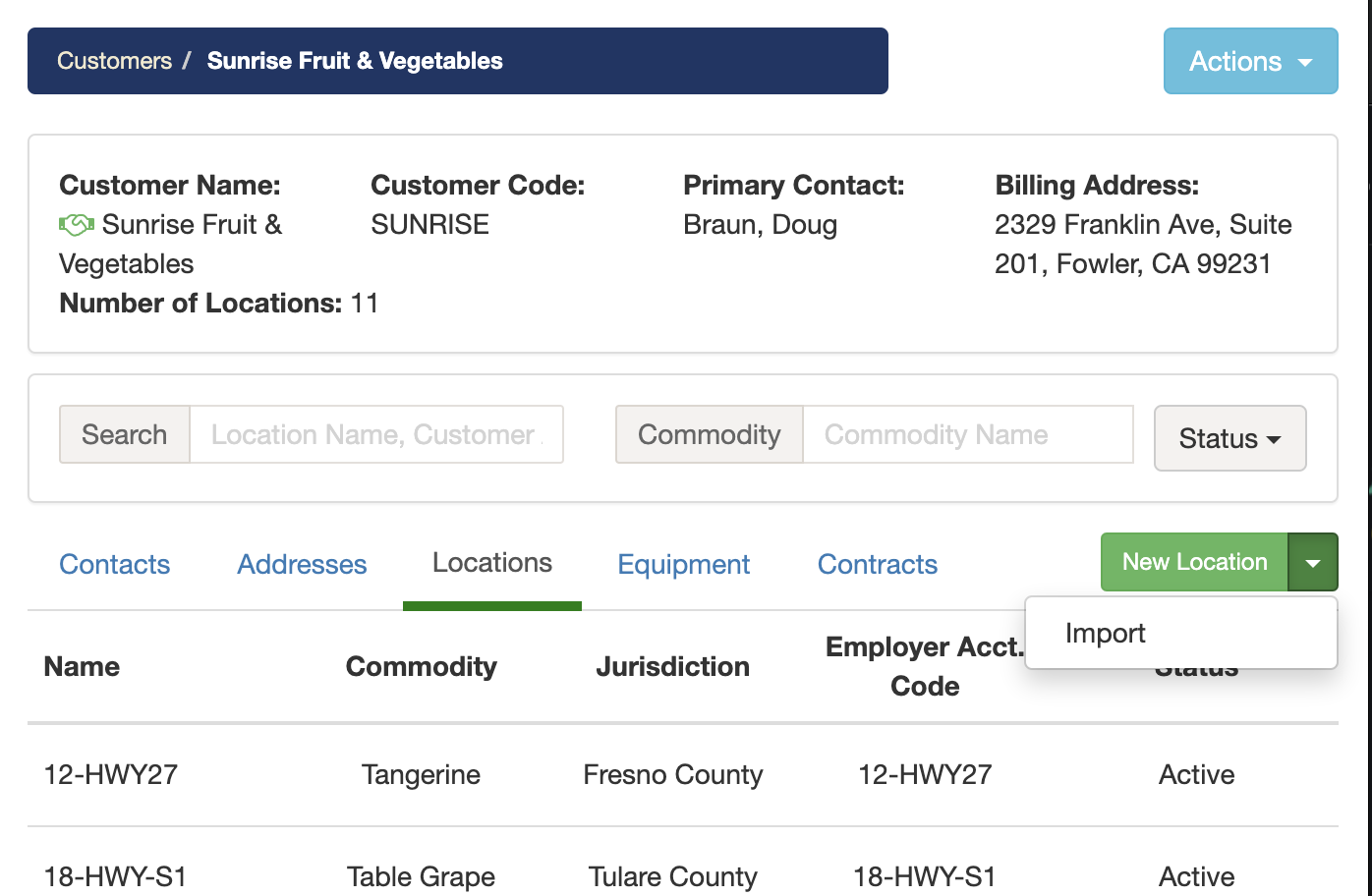
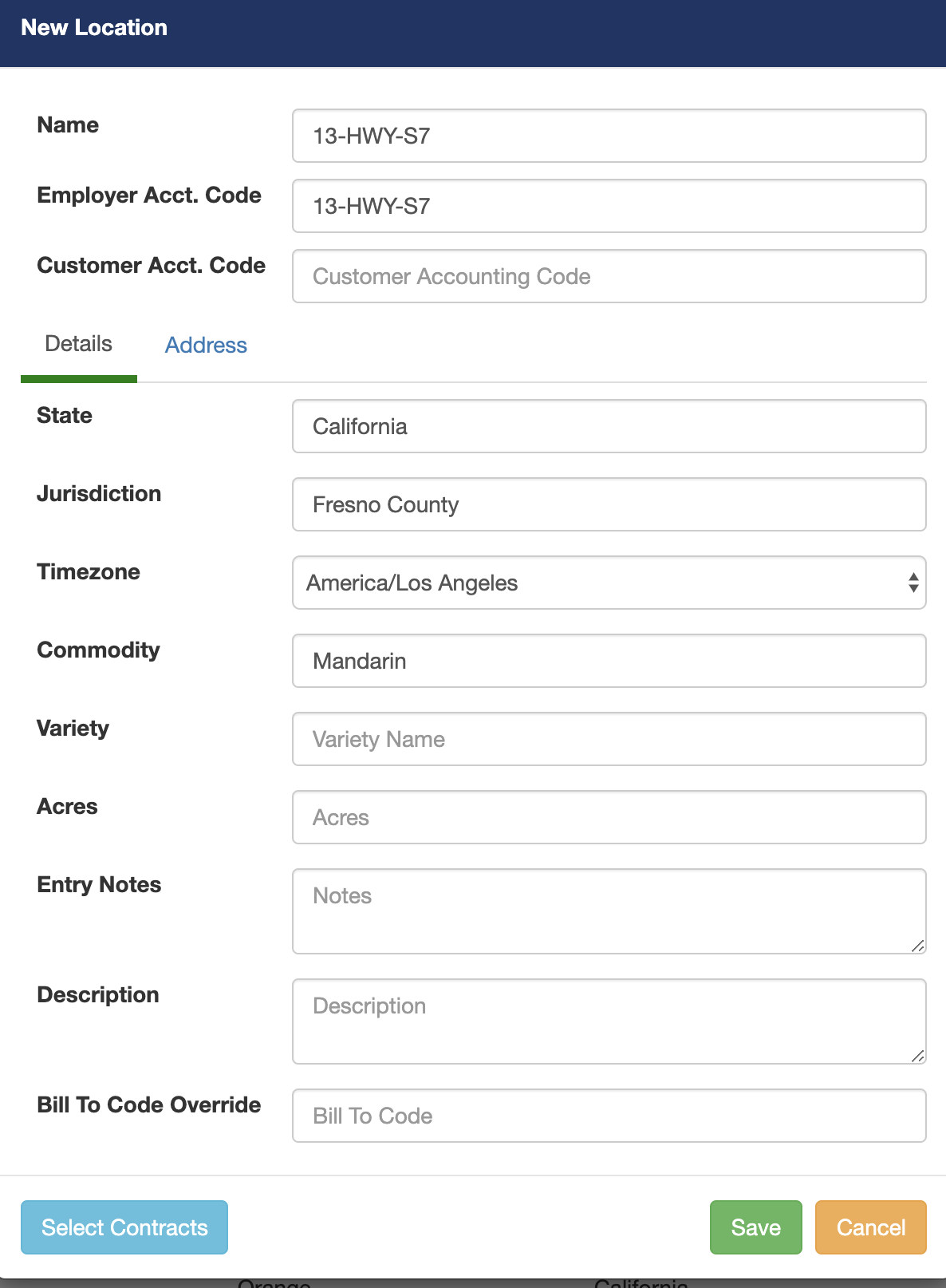
Start by filling out the required fields which are Name, Employer Accounting Code, Commodity and Jurisdiction.
Employer Accounting Code: This field is normally used in the payroll files generated by Pago.
Bill To Code Override: This field can be used to override the Customer Accounting Code.
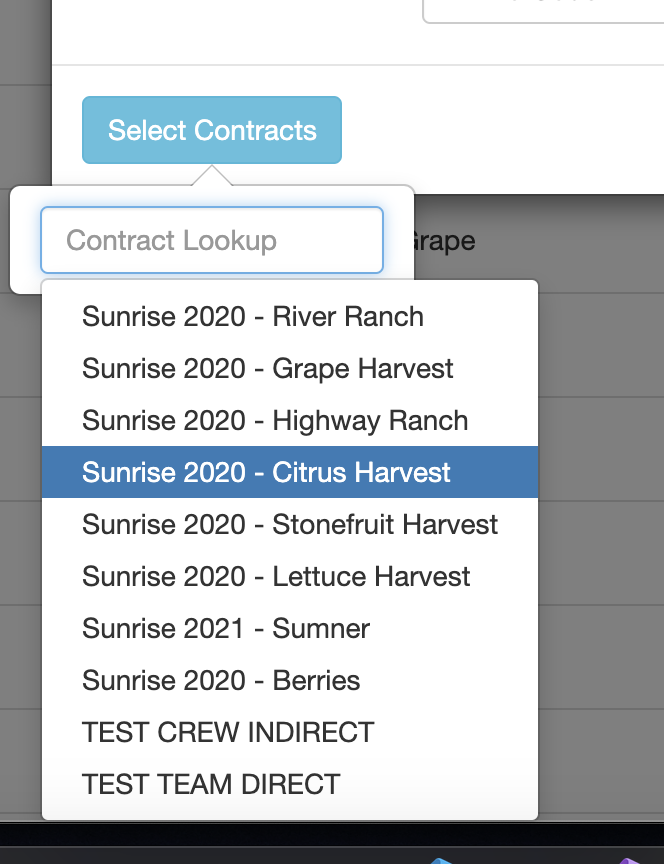
Once you have filled out the location data fields you can lookup and select contracts to add the new location too by clicking on the Select Contracts button. If you don't see a list of contracts then you must create contracts first. Regardless of whether you select contracts or not, you can still proceed with saving the new location.
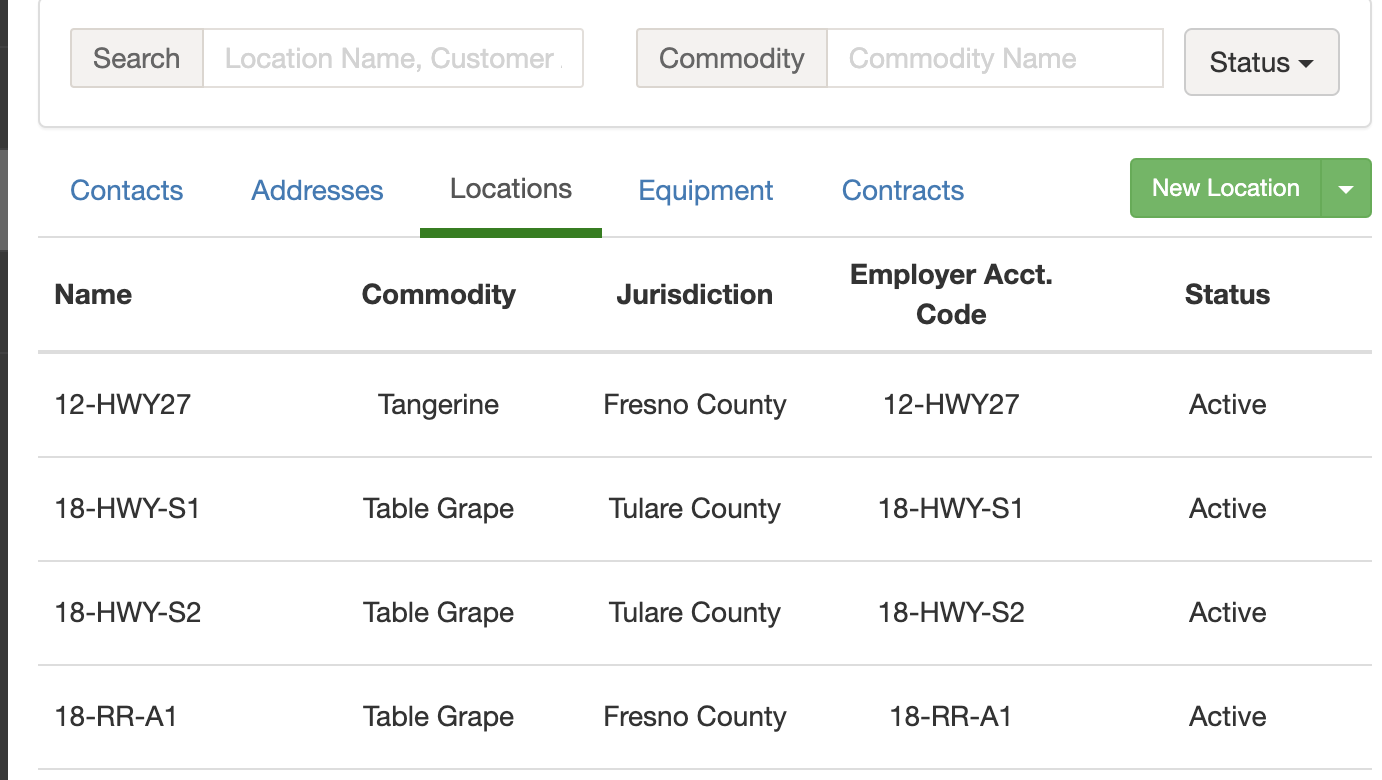
Once you create all of your locations you can filter the list of locations by commodity and status. By default, all locations are set to Active status when initially created.
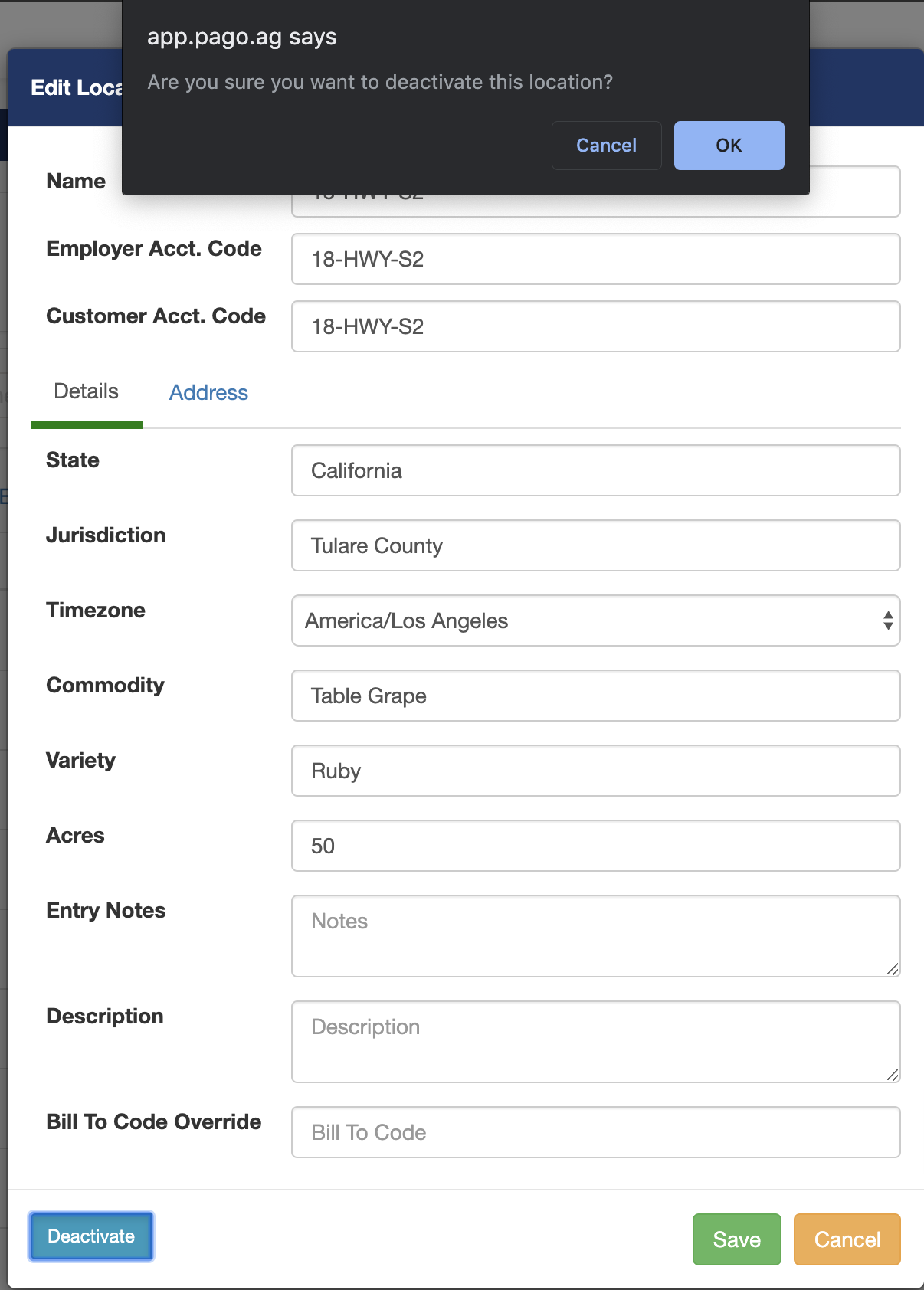
To edit/deactivate a location, click on an active location from the list.
Please note deactivated locations can not be added to a contract, but deactivating a location will not remove it from existing contracts. Also, deactivated locations on a customer contract can not be selected when creating a work assignment.
On the bottom left corner click Deactivate. A confirmation window will appear to click OK.
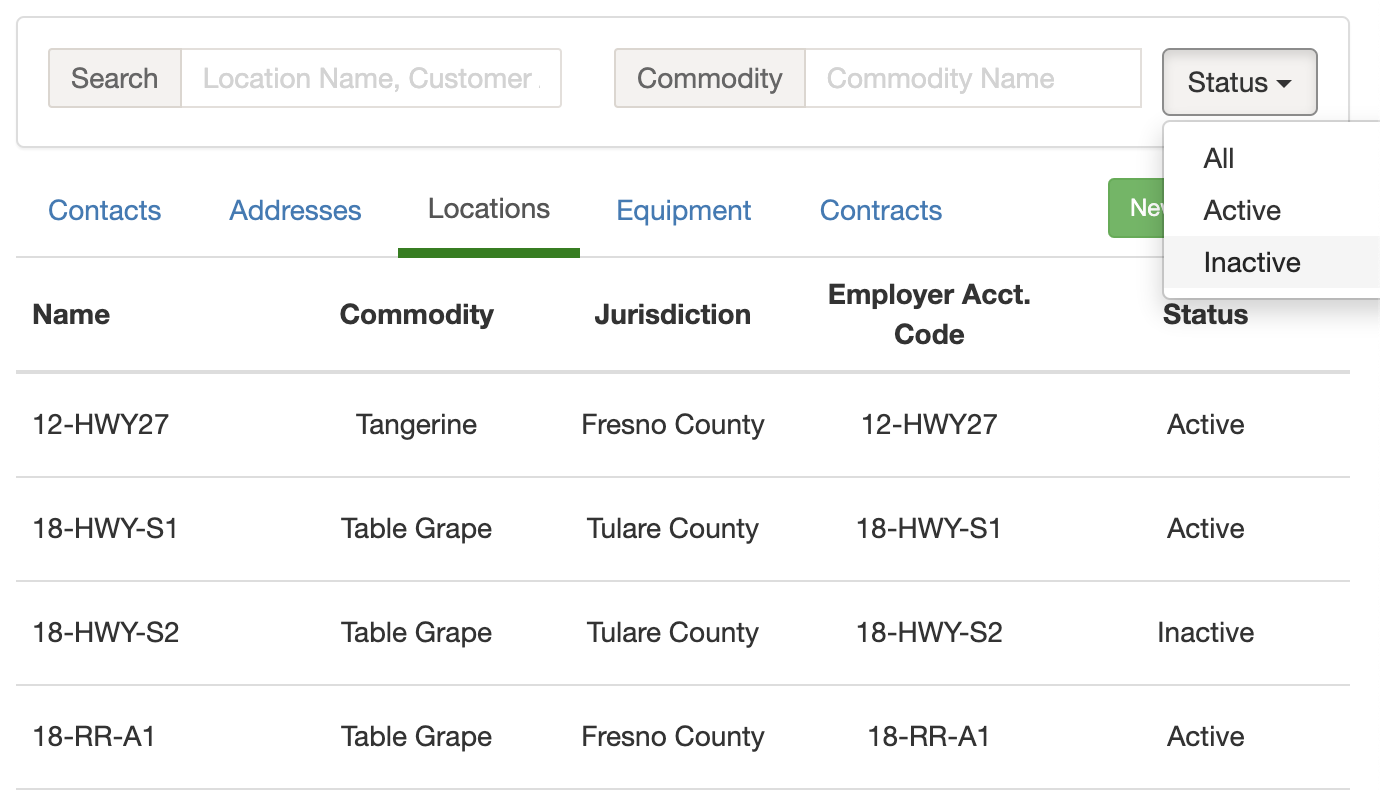
Now You can filter by status by clicking on the Status button. Selecting Active locations will return a list of only active locations. Selecting Inactive locations returns a list of inactive locations for the customer.
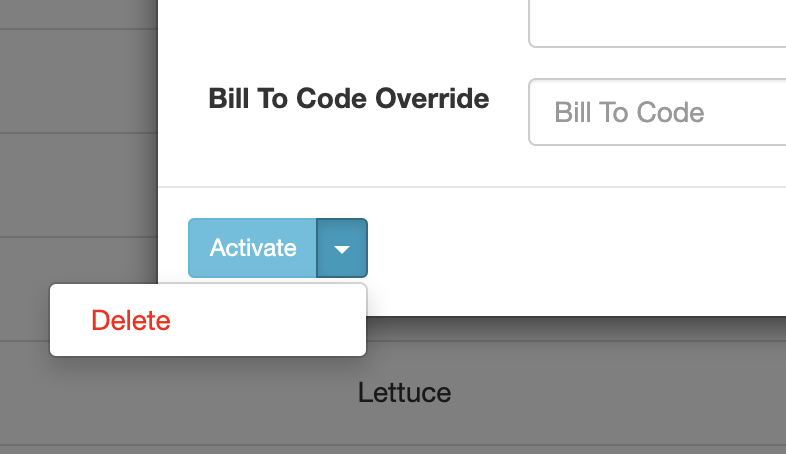
To activate/delete a location click on a deactivated location. On the bottom left corner, you'll have the option to Activate or Delete a location.
Comments
0 comments
Article is closed for comments.