
Copying Work assignments is useful when you will have the same crew doing the same job they did the previous day. Or have multiple crews doing the same job in the same location the same day.
1. Select a work assignment you would like to copy and click the Copy button.

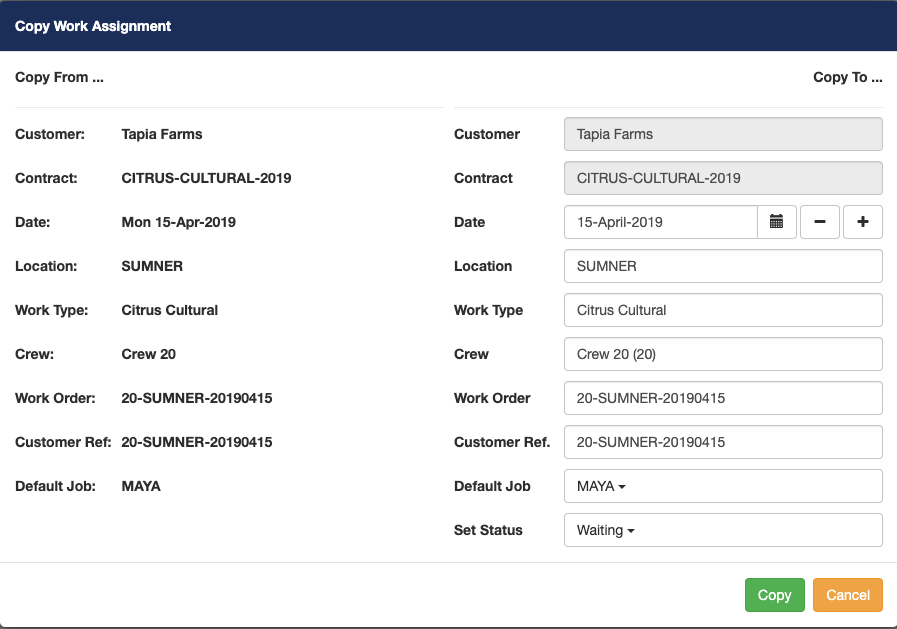
2. A copy work assignment popup window will appear. The Copy from... section on the left side of the window is all the information from the work assignment that you are copying from. The Copy to... section on the right side is the information for the new work assignment you are creating. You can change any of the editable data fields on the right side.
Date: Date of the new work assignment. Use the calendar control or the + and - buttons to set the date.
Location: Select a location for the new work assignment.
Work Type: Normally you will not change the Work Type, but you do have the option of changing.
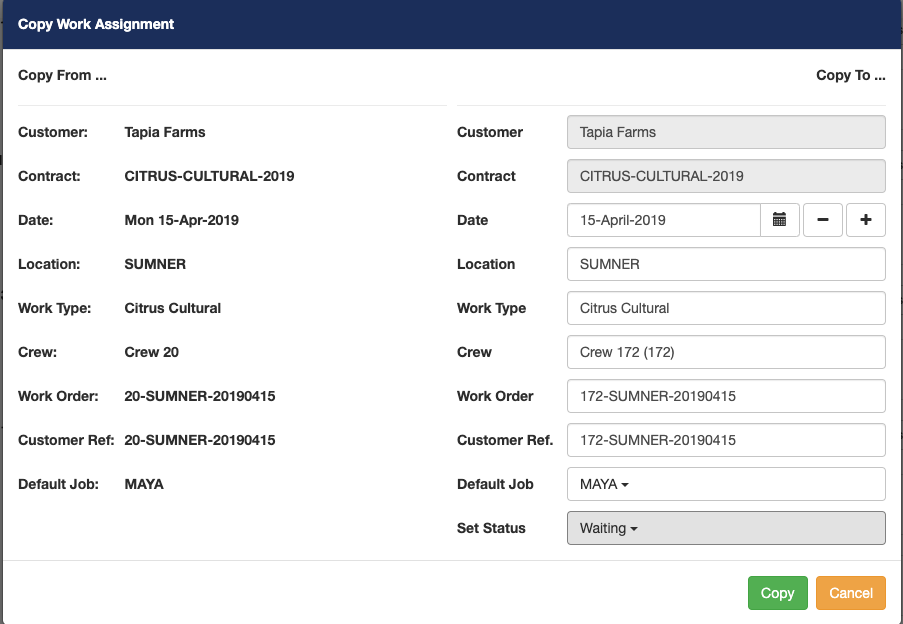
Crew: Change the crew of the work assignment. Only crews that are configured in contracts for the selected Location will display.
Work Order and Customer Reference Number: Pago automatically sets a default Work Order and Customer Reference Number based on your data selections. You can change either value.
Default job: The default job from the appropriate contract will be selected by default. You can change the default job if desired.
Work Assignment Status: You have two options to choose from.
a) Reviewing: The work assignment is being reviewed and is only visible to Pago web users (Note: timekeepers cannot see the work assignment on their mobile devices).
b) Waiting: The work assignment is visible to both Pago web users and Pago timekeeper mobile users.
3. Once you have made the necessary changes click the Copy button.
Comments
0 comments
Article is closed for comments.