
A work assignment schedules a crew to work on one day and at one customer location. You can select which jobs show up in the timesheet for work assignments. If you are tracking production, you can enable products on each work assignment. Work assignments go through a workflow that makes them visible and invisible on mobile devices.
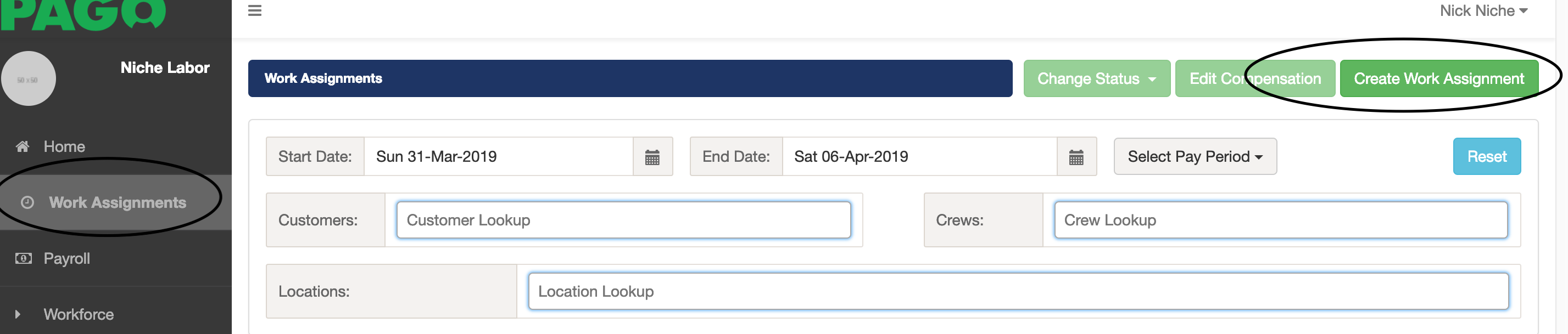
1. In the top level menu, select the Work Assignment option. A list of work assignments will display.
2. Click the Create Work Assignment button.
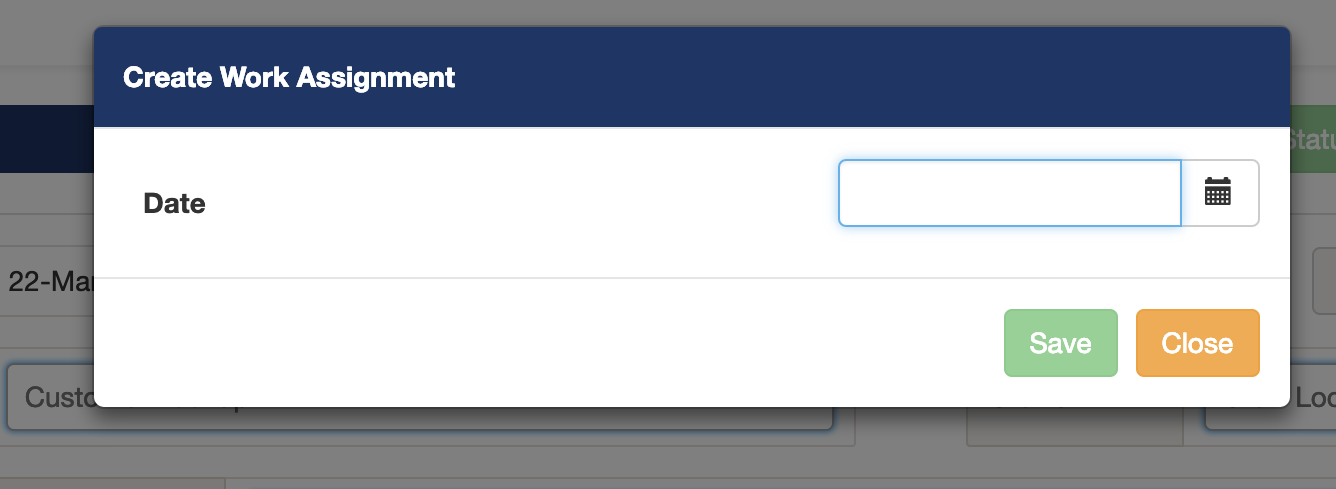
3. Select the Date of the work assignment. Once you select the date you will see a list of customers to choose from. (Please note: only customers with contracts with effective dates on the work assignment date will display).
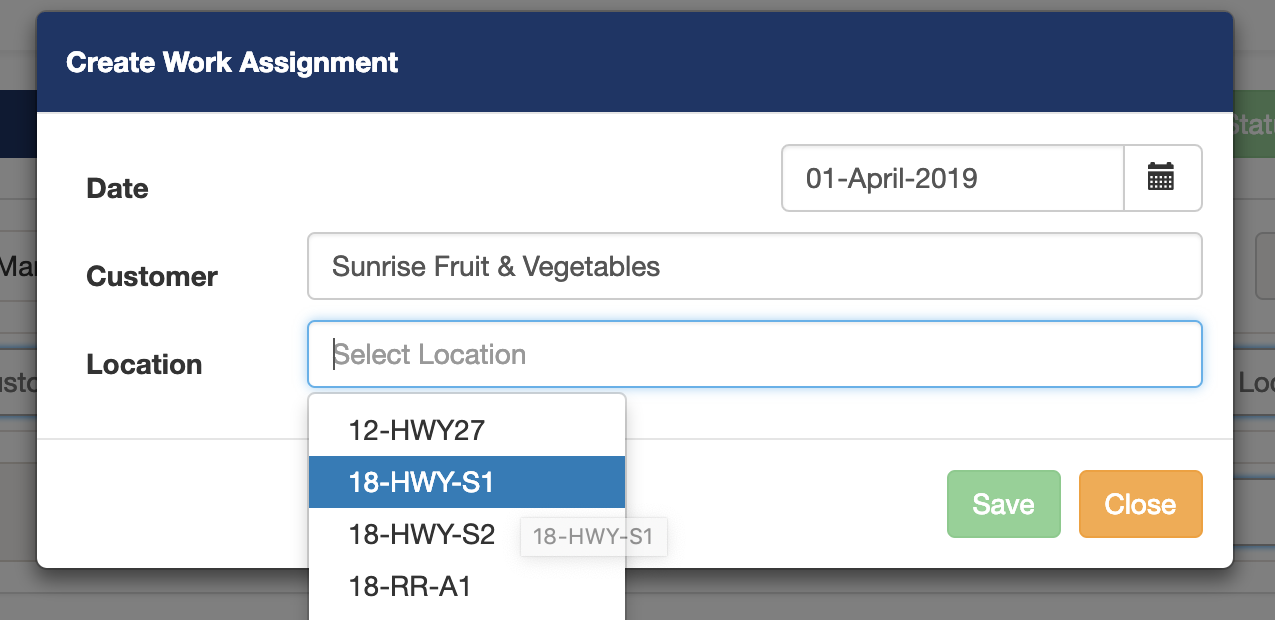
4. Select a Location. (Please note: only locations associated with customer contracts will display in the list). The selected location, with its associated commodity, will determine the work types available for the work assignment.
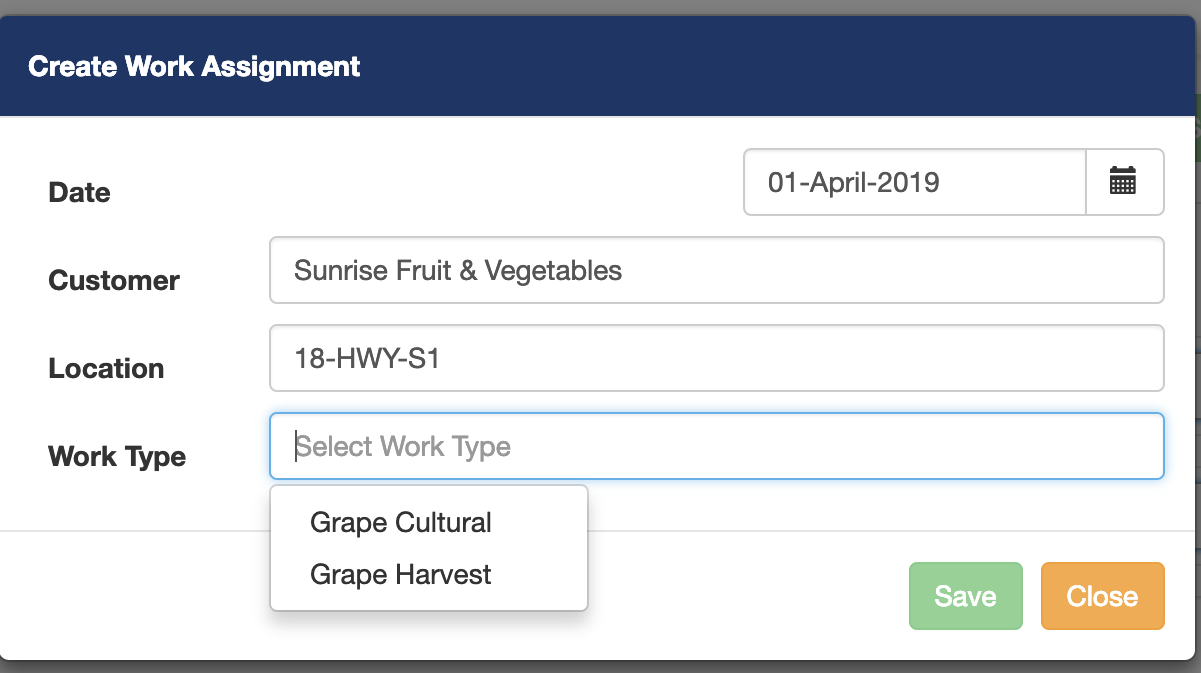
5. Select a Work Type. The selected work type determines the contracts that are available for the work assignment. (Please note: if you don't see the work type that you expected to see, verify the location, with its commodity, is properly configured in a customer contract).
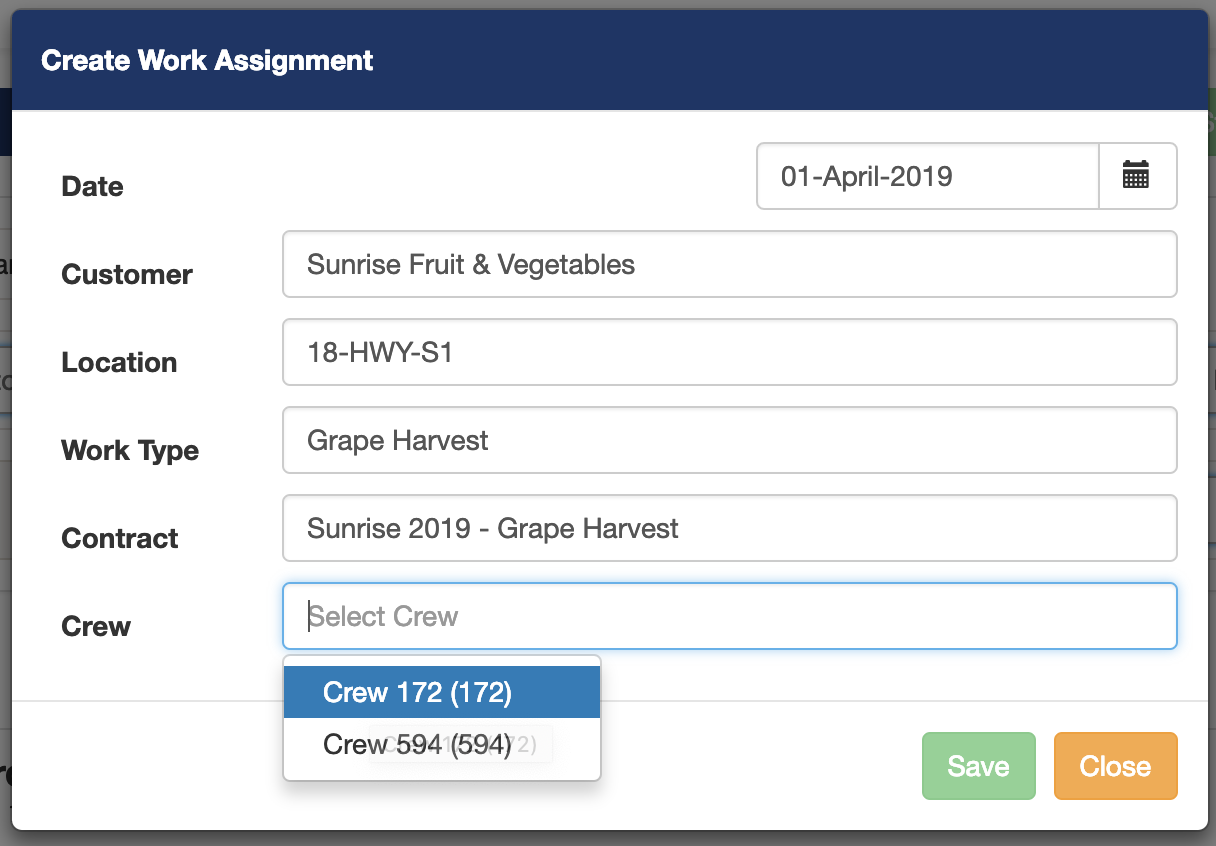
6. Select a Crew. (Please note: if you don't see the desired crew, verify the desired crew is associated with an appropriate customer contract.
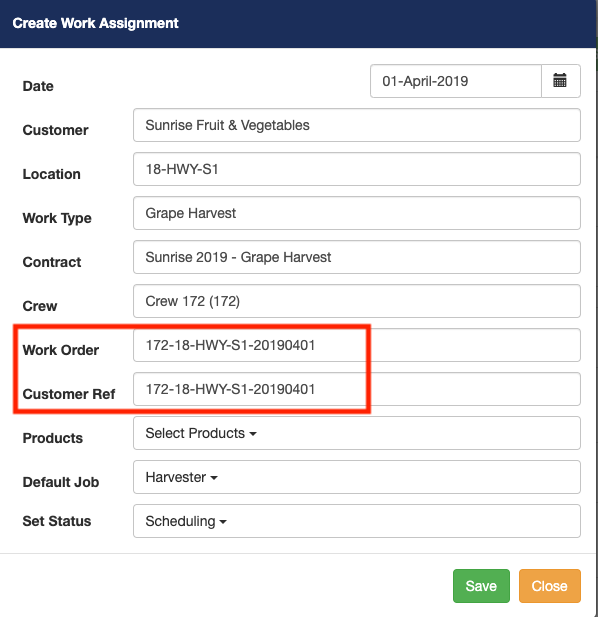
The Work Order and the Customer Reference Number will auto-generate based on the selected crew, location, and date. Feel free to change the auto-generated Work Order or Customer Reference Number values.
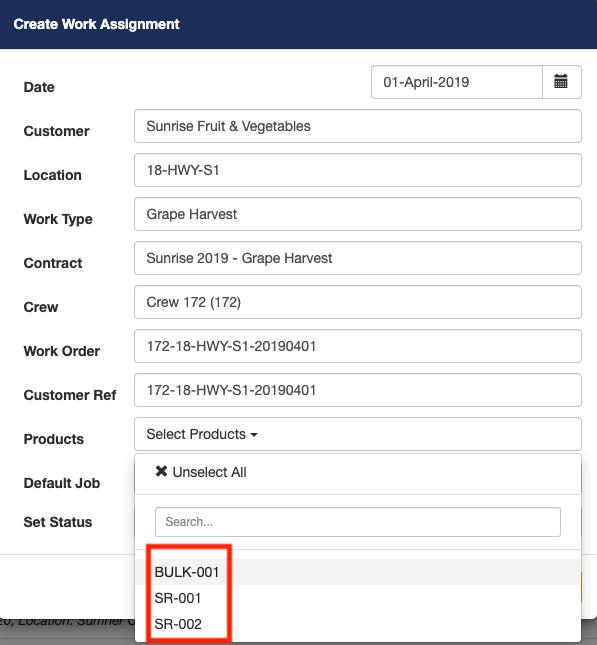
7. Select the appropriate Product, or Products, for which you want to count production on the work assignment. If you are not counting production, you don't need to select any products. (Please note: You can setup products in the contracts so that they are automatically added to all new work assignments).
8. Select the Default Job. If you set a default job in the contract, it will be selected by default on new work assignments. You can change the default job for this work assignment. The default job will be the job that employees clock into unless you change the job when employees are clocking in.
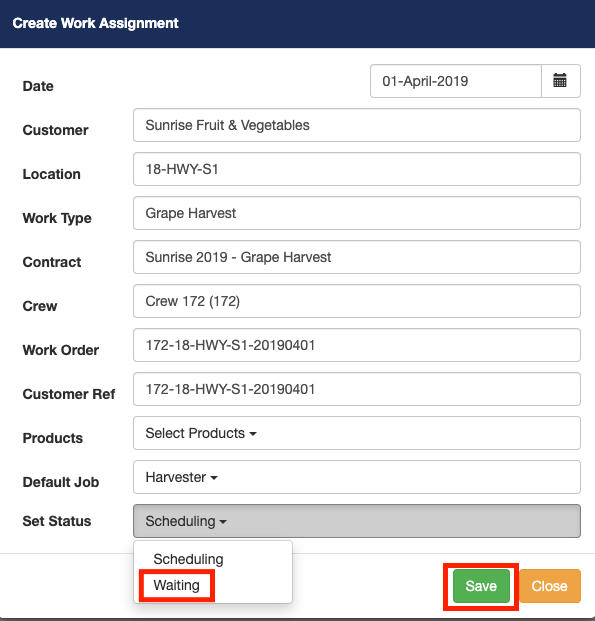
9. By default, the status of a newly created work assignment will be set to Scheduling. You can optionally change the status to Waiting. If you set the status to Waiting, the work assignment will be immediately visible to the timekeeper user in their mobile device.
10. Click the Save button to create a new work assignment with the values you have selected.
Related link: Work assignment status workflow chart
Comments
0 comments
Article is closed for comments.