
When you are reviewing a work assignment and need to change multiple worklogs at the same time, you can do this with the Edit Worklogs feature. In the time and production review page there is a link with the label Edit Worklogs. (Note: if your work assignment is in the Completed status, the Edit Worklogs link will not be available).
When you click the Edit Worklogs link, you can view all of the work assignment worklogs for the employees in the work assignment. Both time and production worklogs are displayed. There is a check box next to every worklog. You can manually select worklogs to edit. Or, you can use the filter feature to narrow down the list of worklogs.
For this article, we will be showing you how to edit the Start Break and Resume Work worklogs for multiple employees. First, we will be editing the Start Break entries for the crew.
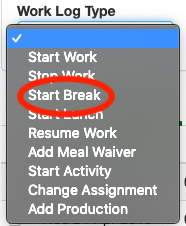
1. We can filter the worklogs to only display the Start Break worklogs. On the top left click on the Work Log Type field. A drop-down list will display with several options. Click on the work type you would like to modify. We've selected Start Break.
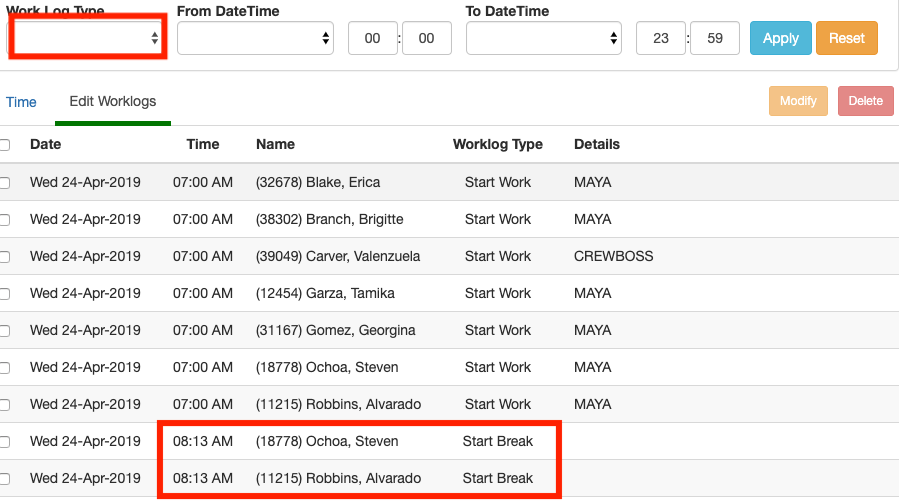
2. Next we can select a time range to further narrow down the list of worklogs. In our example, we only wanted the Start Break at 8:13 A:M, so we set both the From DateTime and To DateTime values to 8:13 am (Please note: the format of the time fields is 24 hour/Military Time so 5pm would be 17:00)
3. Click the Apply button. A list of the worklogs that match the filter will be displayed.
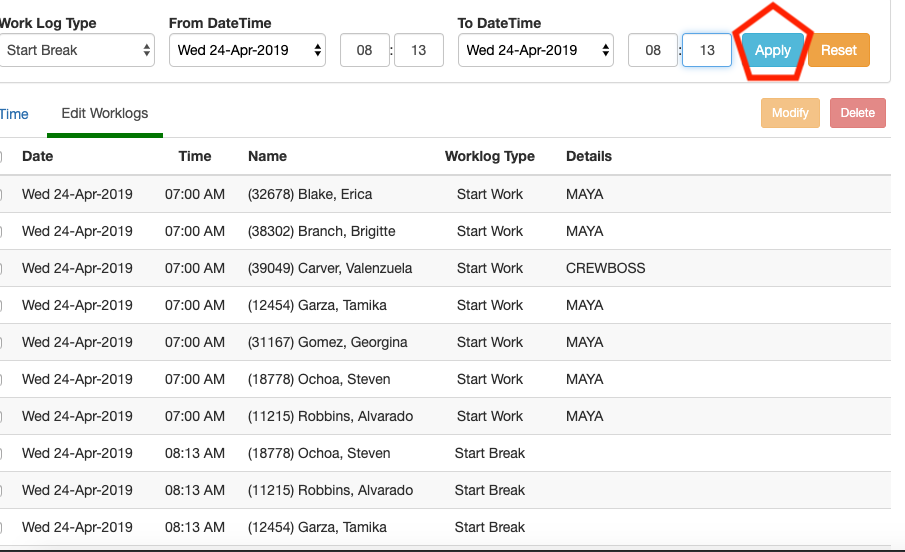
4. Select all the worklogs you would like to modify. You can click individual worklogs or you can click the checkbox in the header row to select/unselect all worklogs. We are going to modify the worklogs, but you also have the option of deleting the selected worklogs. Click the Modify button.
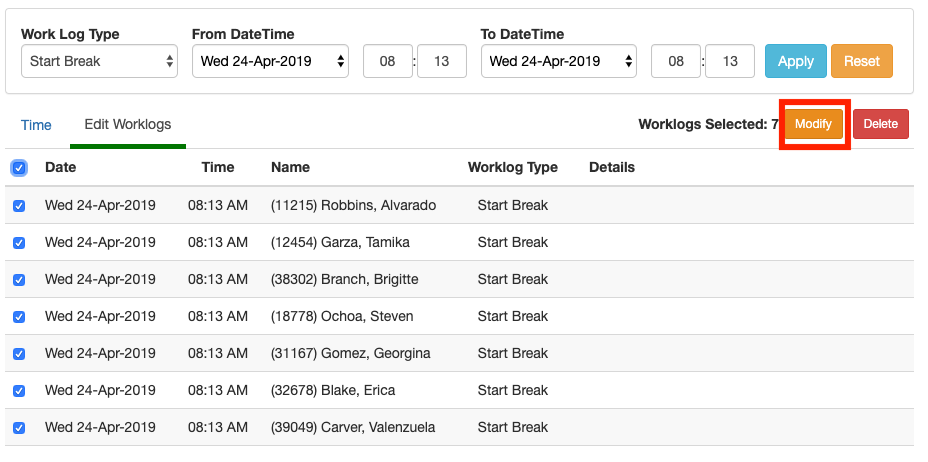
5. A edit worklog popup window will display. Click on the checkbox next to the item you would like to change. Make the appropriate changes and click the Update.
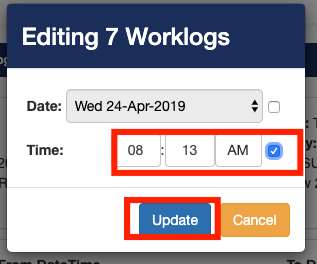
6. Now that we changed the Start Break worklogs, we need to modify Resume Work worklogs accordingly.
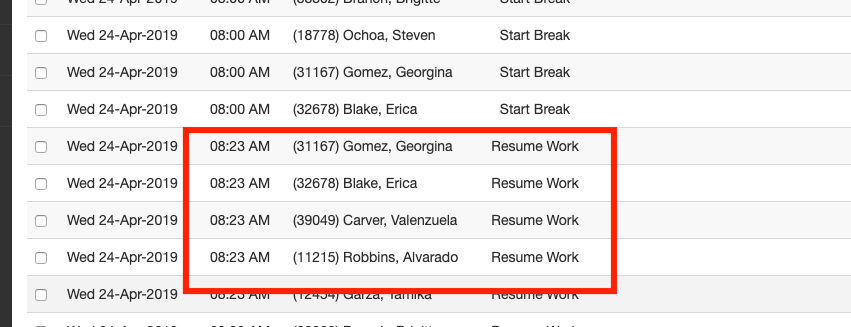
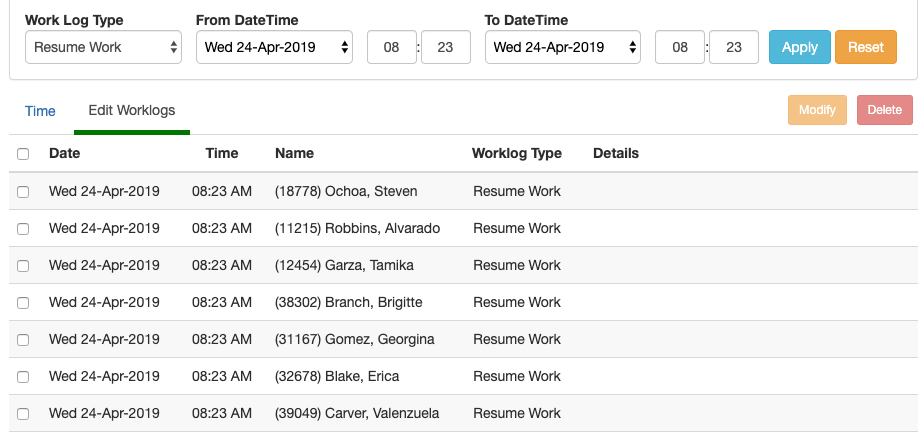
This time we are going to filter by selecting the Resume Work Work Log Type and repeat the same process as we did for modifying Start Break worklogs above.
Comments
0 comments
Article is closed for comments.