
Add Production:
1. Select a work assignment you would like to add production to.
2. In the production section on the top right, click on the Add Production button.

3. A Production Entry popup window will appear. Select an employee, set the time, and enter the quantity for the product(s) configured for the work assignment. You will have the option to save or save and new. The Save button saves the production entry and closes the window. The Save and New button saves the entry and allows you to add additional production entries for other employees.
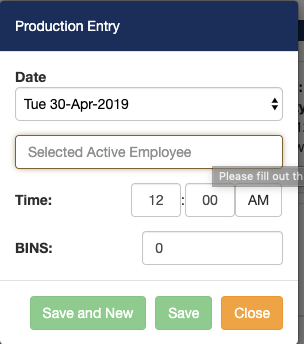
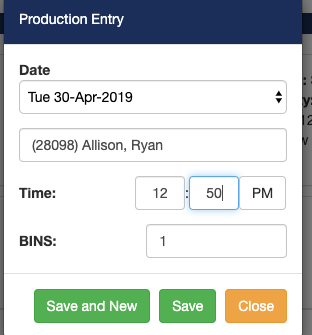
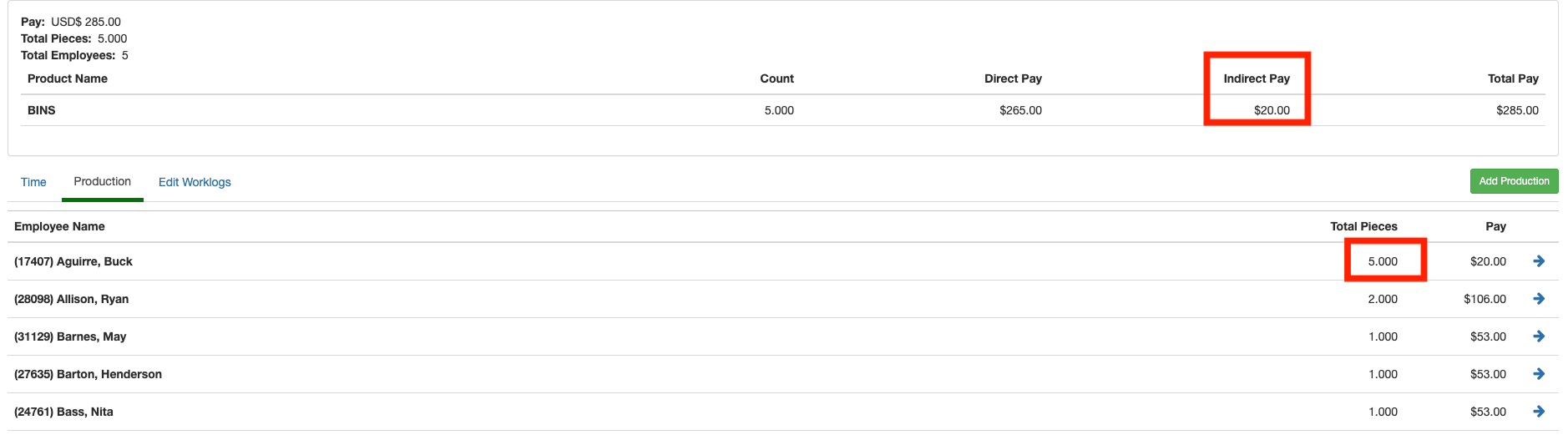
In our example, we selected Ryan Allison as the employee. After entering production counts, the production screen will be updated to display the updated production counts.
In our example, the employee named Buck Aguirre gets paid indirectly for production. His production counts update to the total production of all the other employees.
Edit/Delete Production:
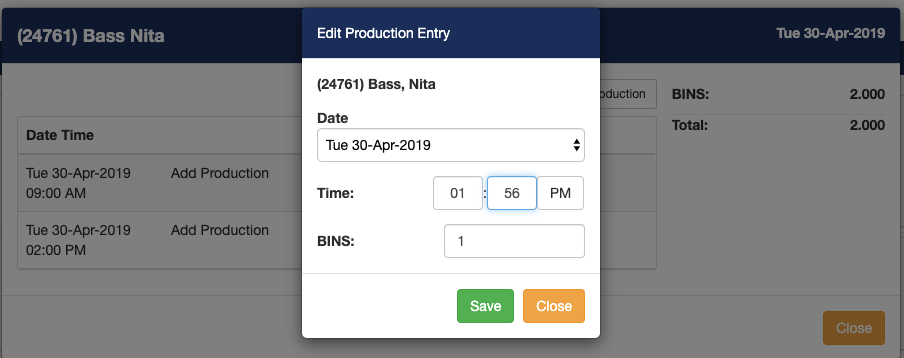
Click on an employee record to see their production entries. To edit a production entry, click on the pencil button. To delete a production entry, click on the x button. In this page you can also add new production entries.
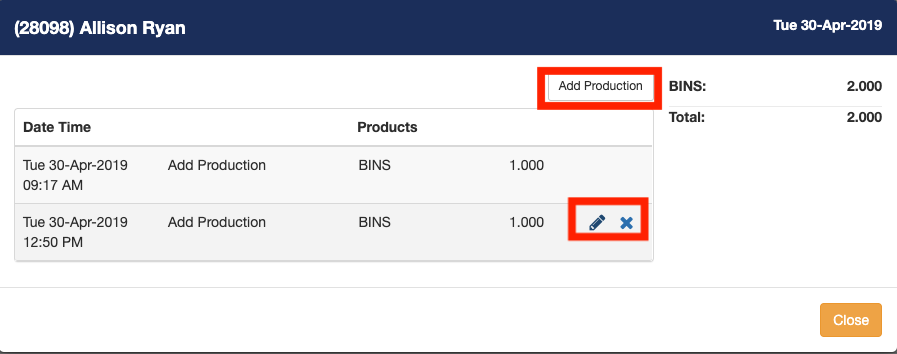
When editing production, you can change the data values and then click the Save button.
Comments
0 comments
Article is closed for comments.