
If a crew finishes their work for one work assignment and is moving to another work assignment, the Pago Timekeeper mobile app has a special feature for changing work assignments.
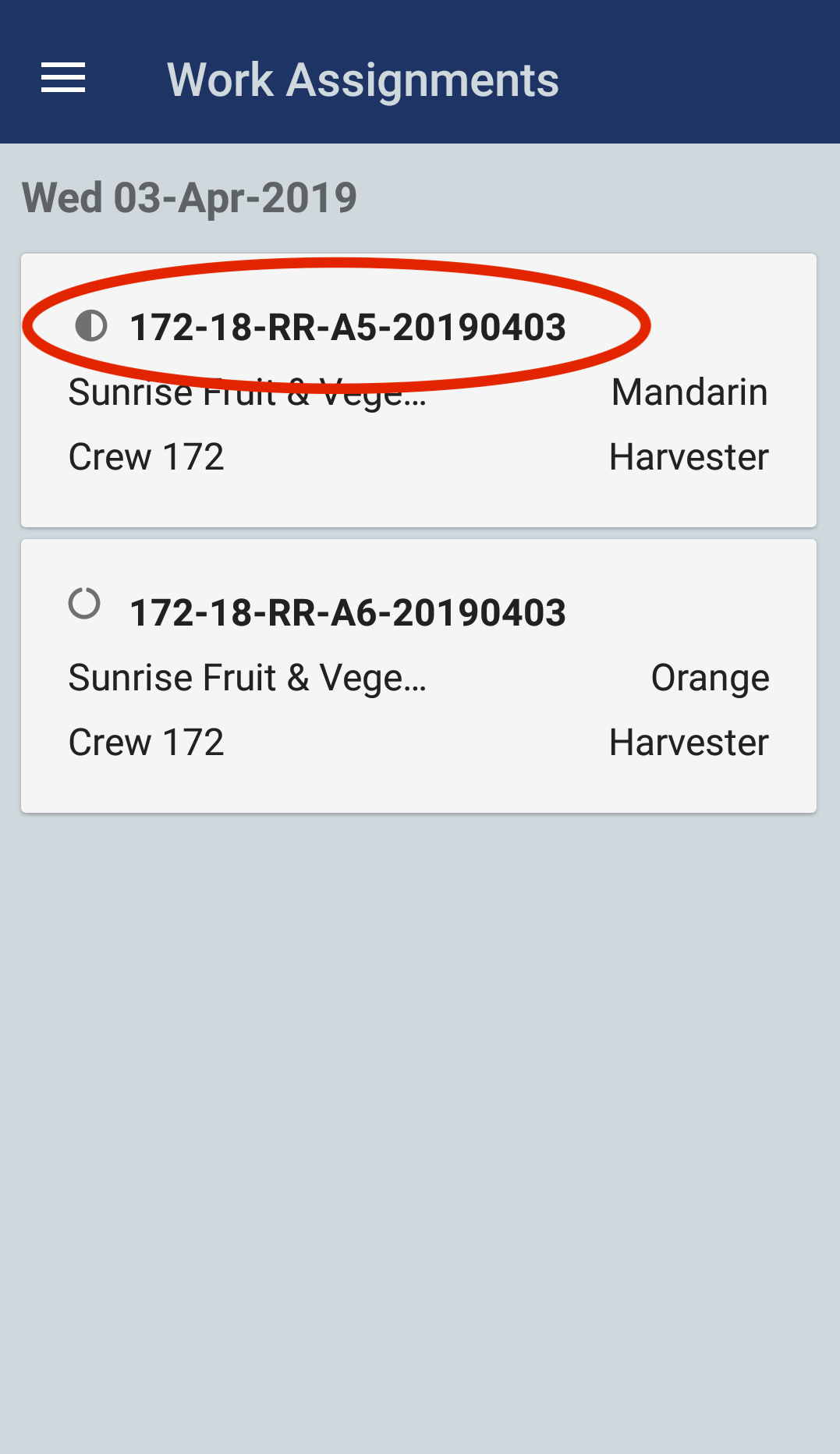
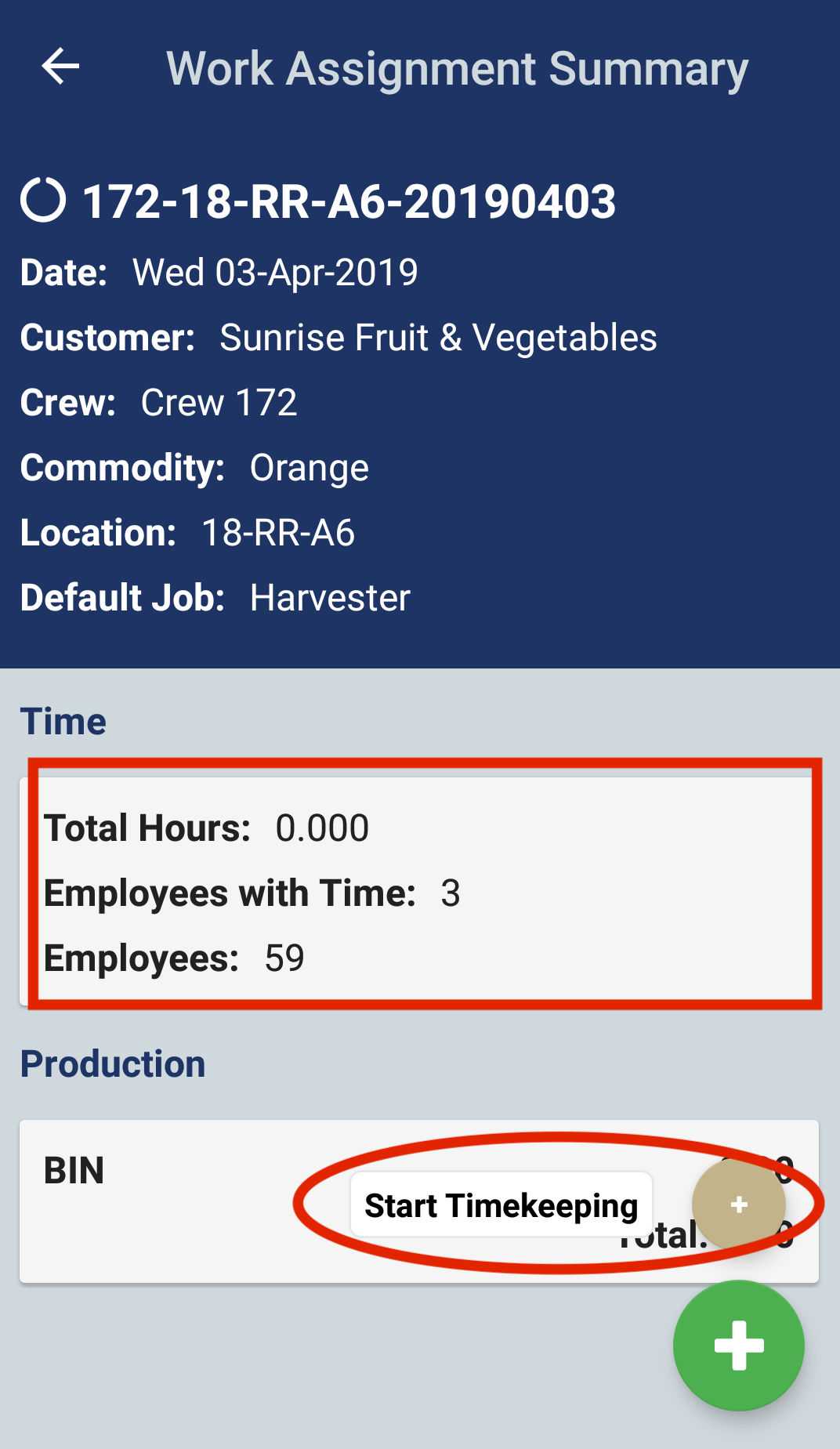
In this example, notice the crew has already started timekeeping for their first work assignment and the status is Timekeeping. There is a second work assignment in the Waiting status. Select the first work assignment to get started.
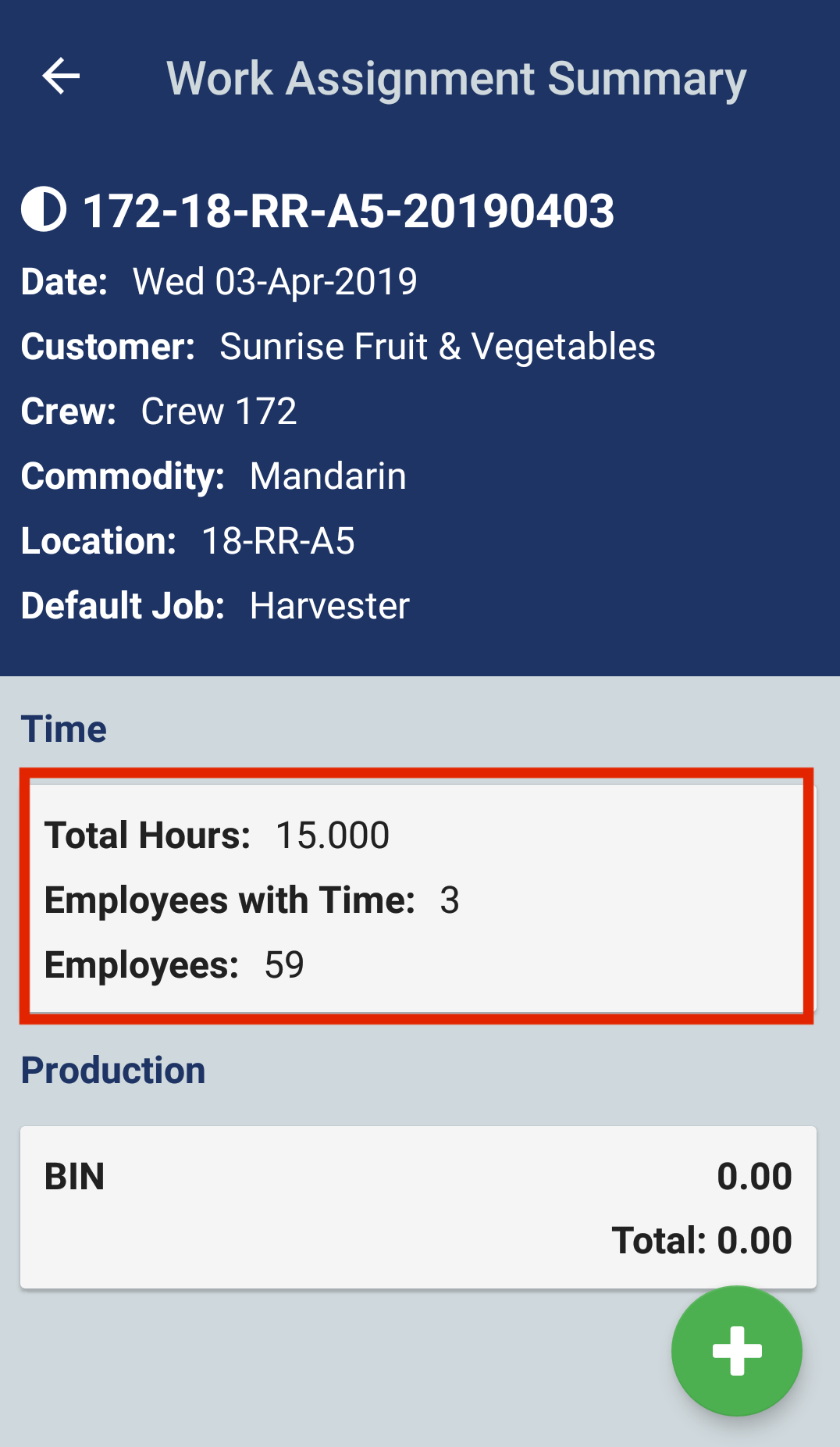
Now select the Time section
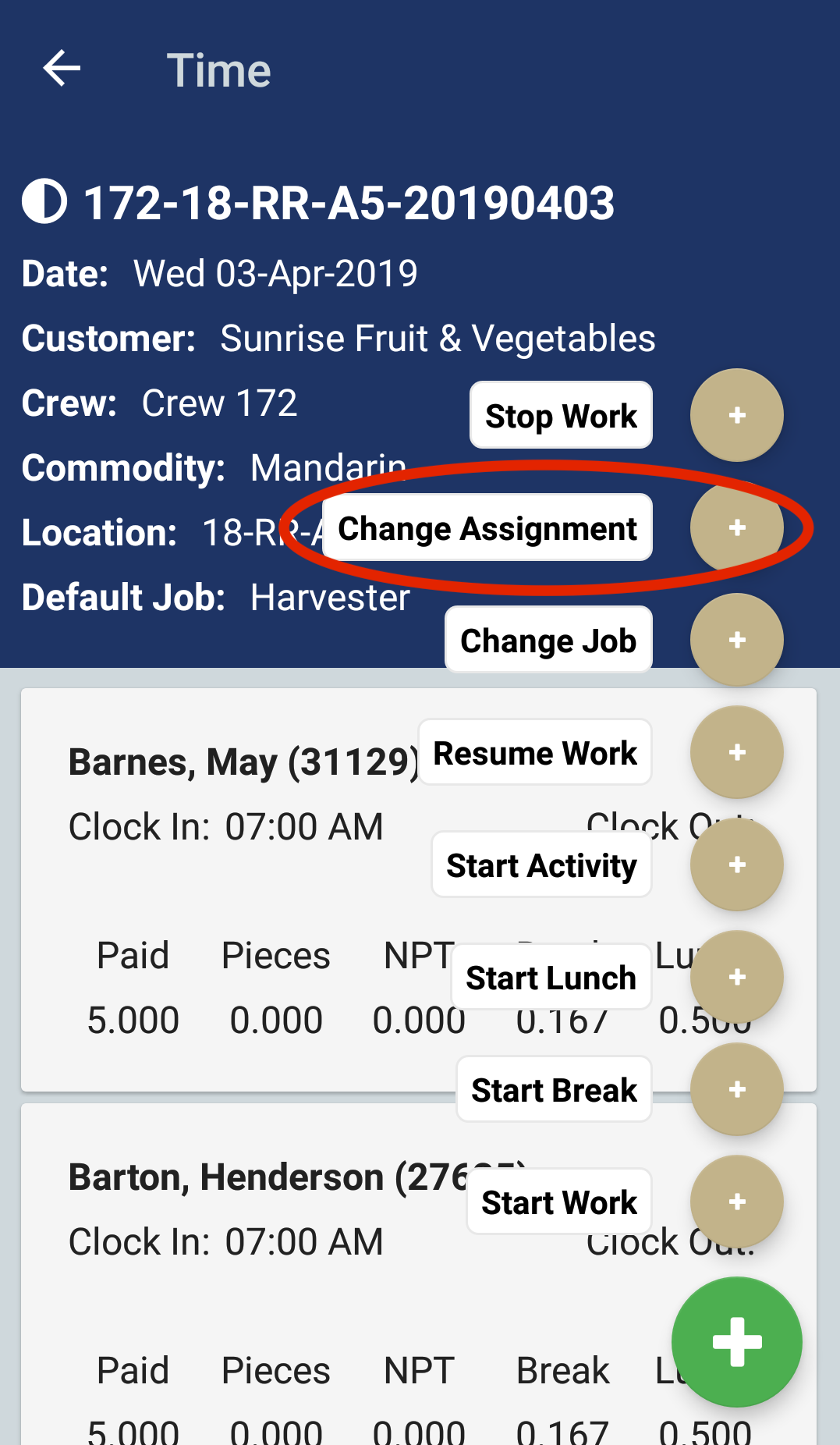
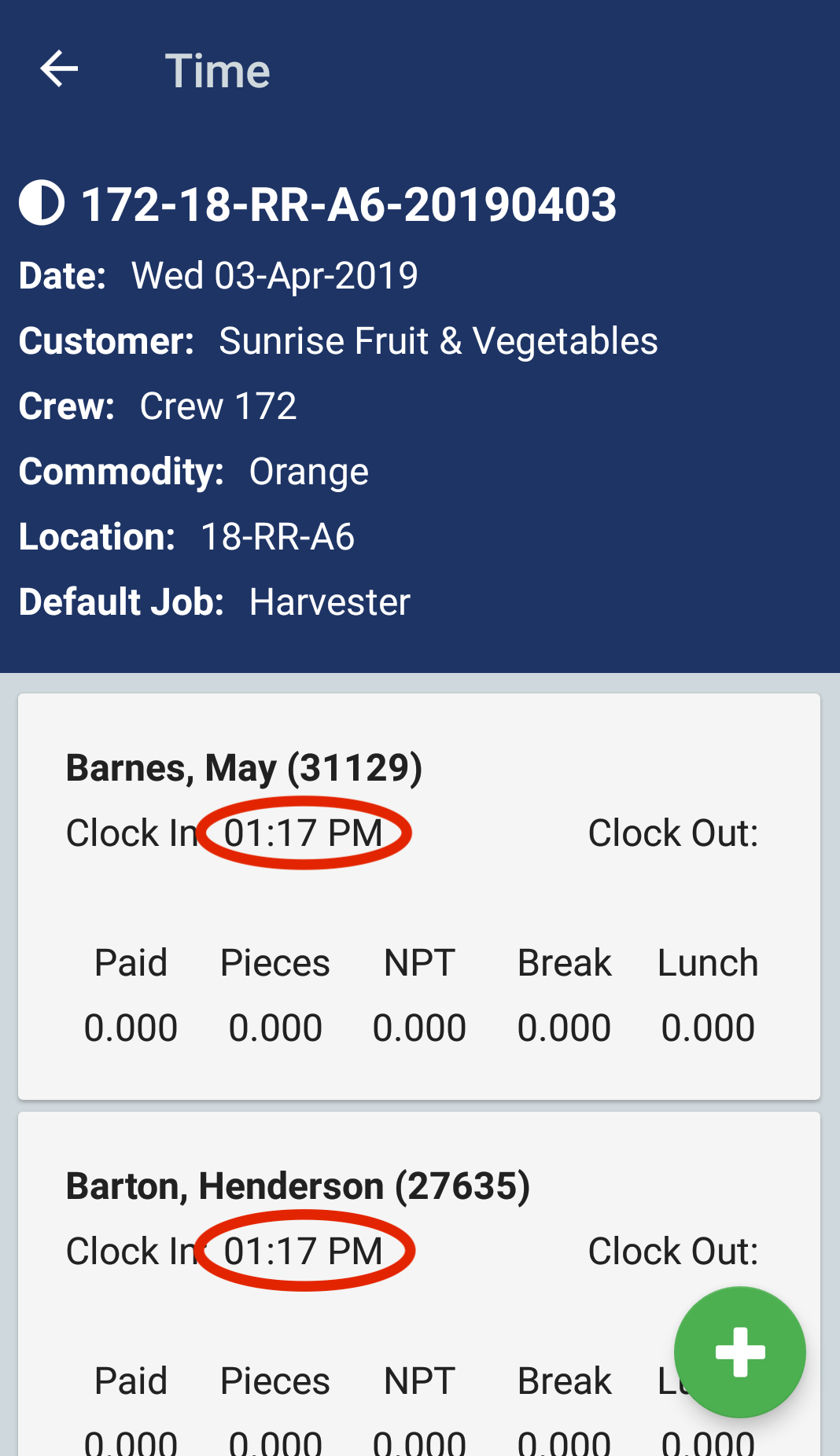
On the time screen, tap the green plus button and then select the Change Assignment option.
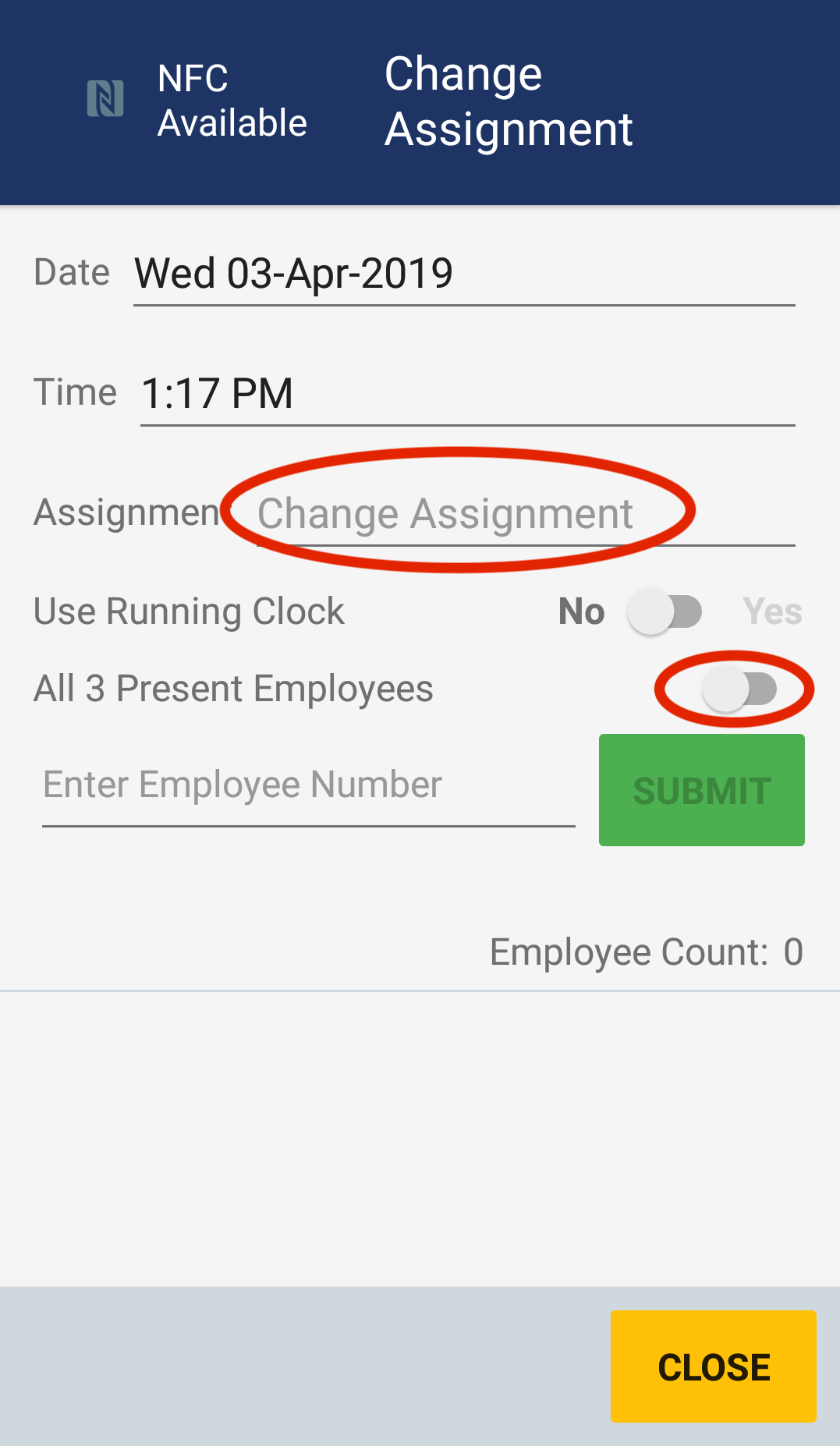
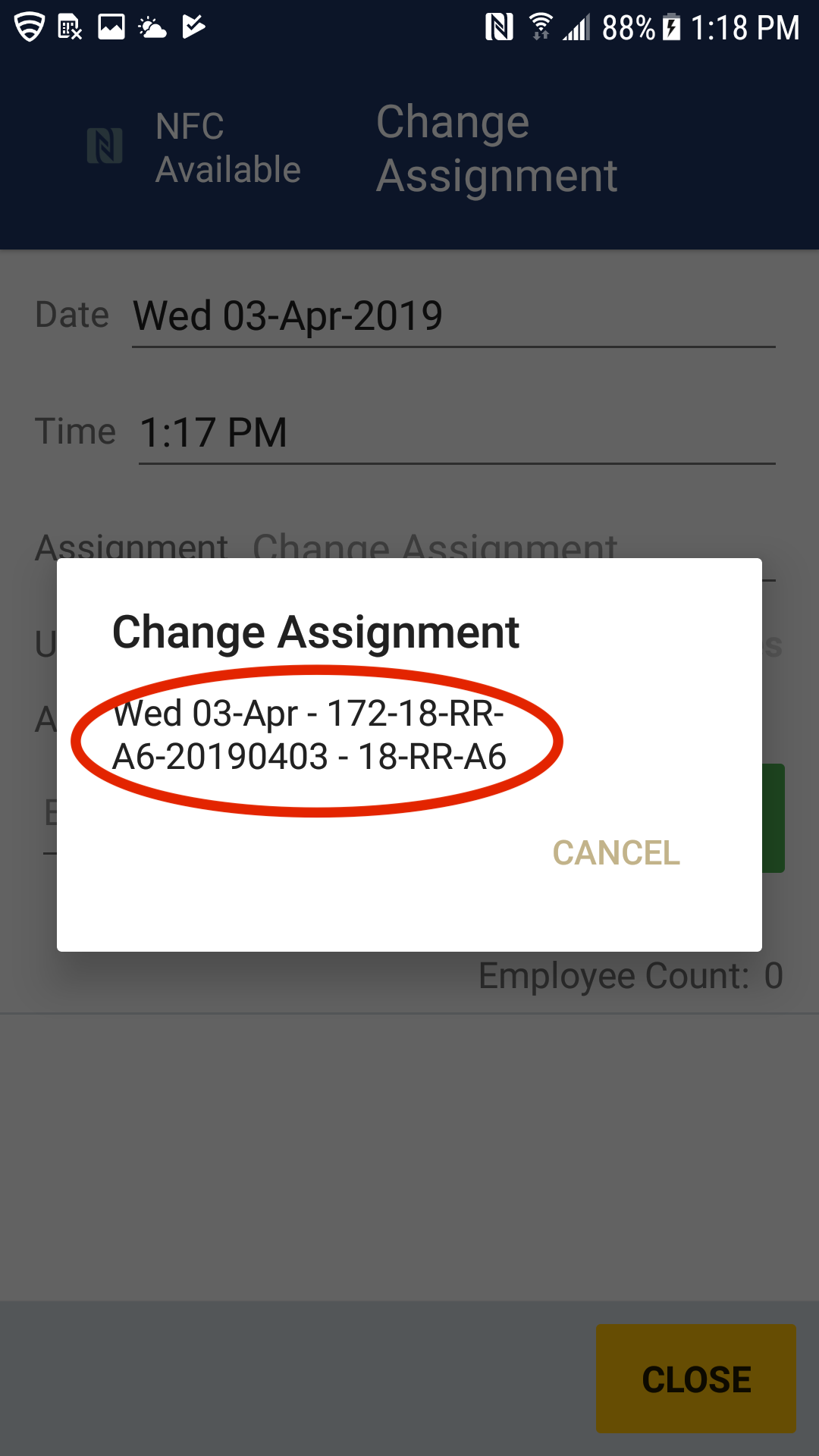
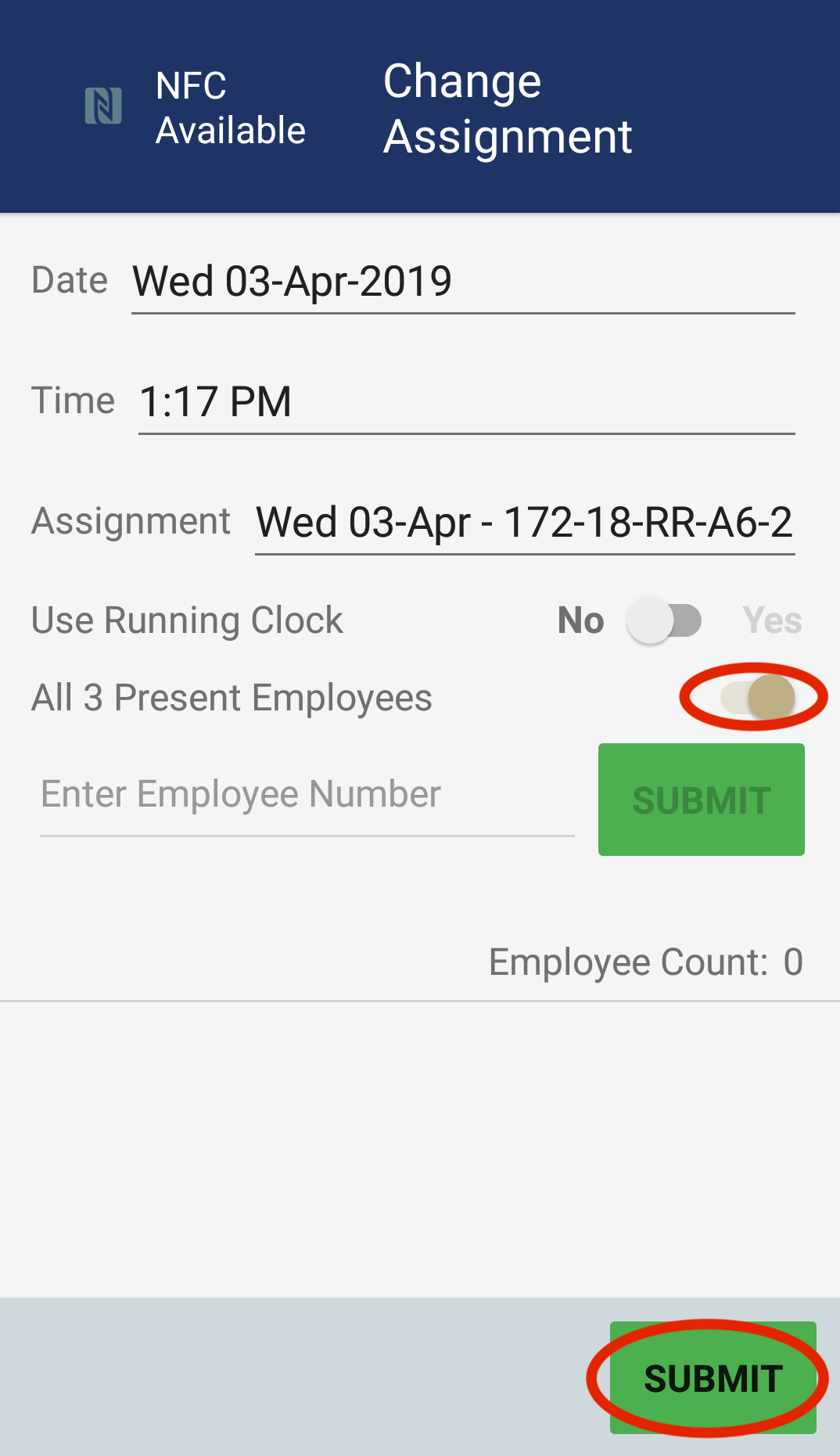
Now select Change Assignment field and a list of work assignments will display. Select the assignment you want to change to. (Please note: if no work assignments display in the list, then there are not any other work assignments for this crew scheduled for the same day). If all crew members are changing to the new work assignment, then set the All Present Employees option. If a portion of the crew is changing work assignments, then you can scan only those employees who are changing. Once you are done setting the values, tap the Submit button.
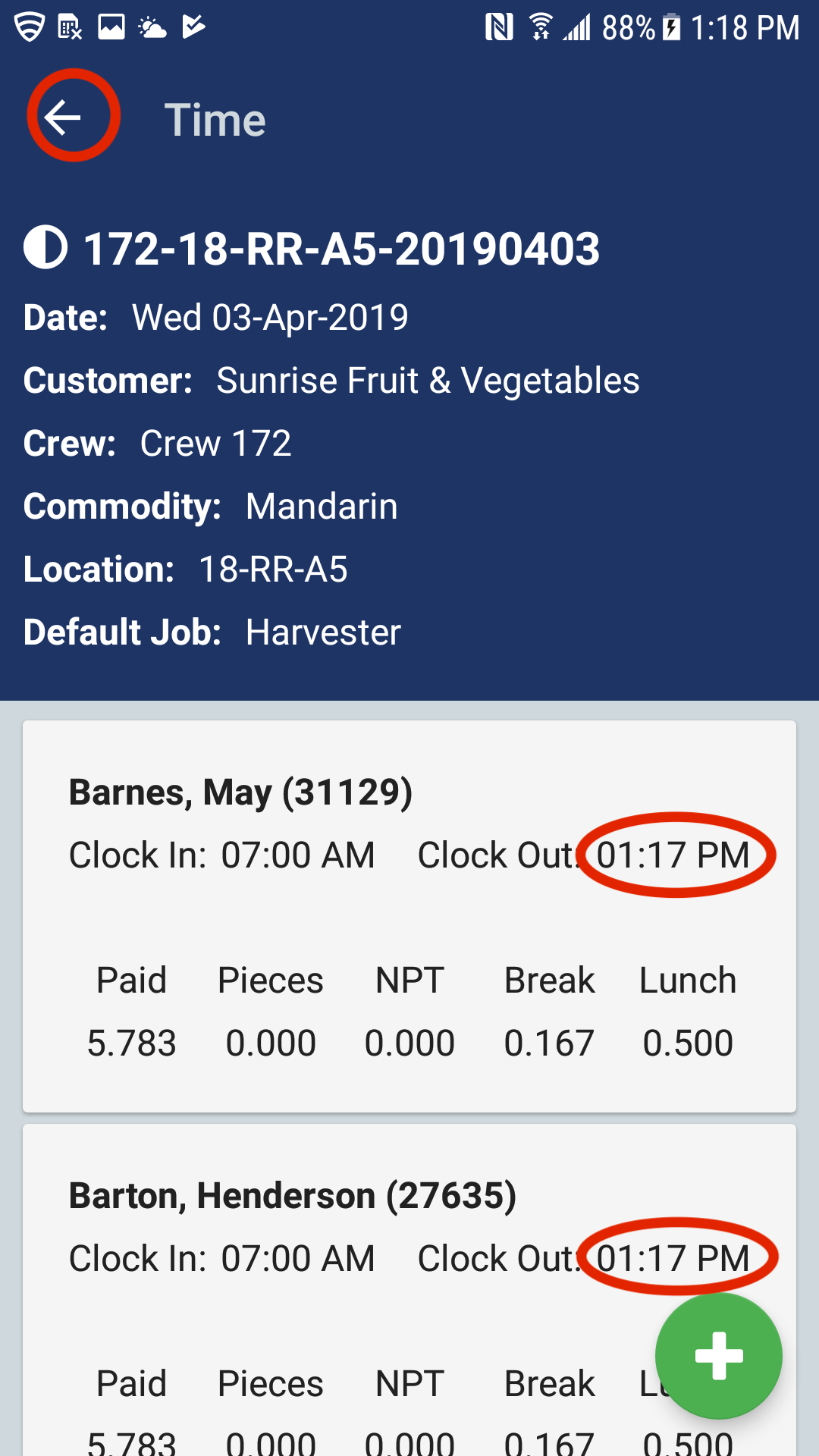
The Pago Timekeeper mobile app will automatically clock the employees out of the current work assignment and clock them into the new work assignment. If you return the the Time screen, you will see the clocked out employees.
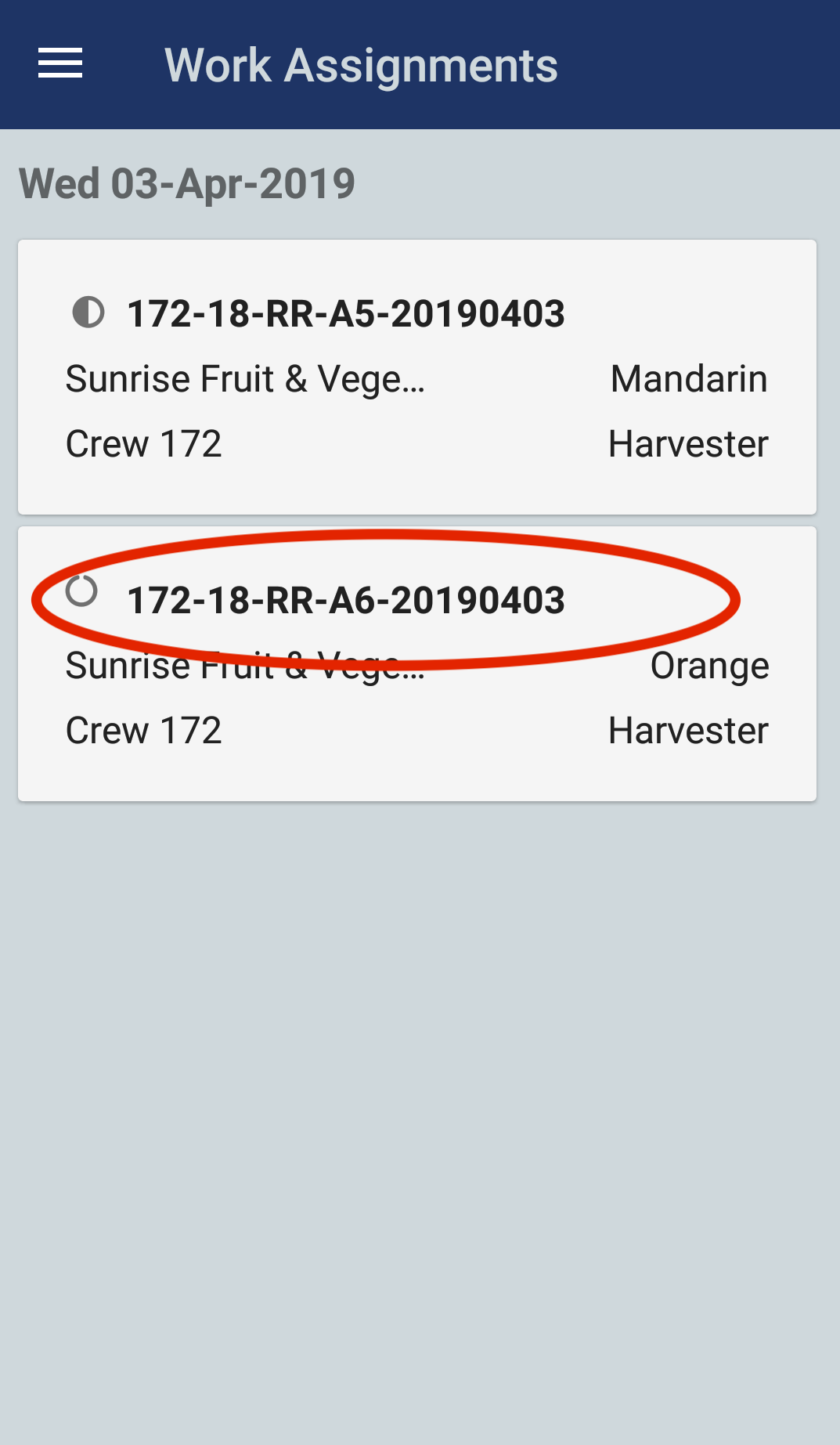
If you return to the Work Assignments screen, you can now select the new work assignment to review the newly clocked in employees.
Comments
0 comments
Article is closed for comments.