
When you first open the Pago Timekeeper mobile a list of work assignments will display based on the crews your user account is associated with. Tap the button with three horizontal bars to view the main menu.

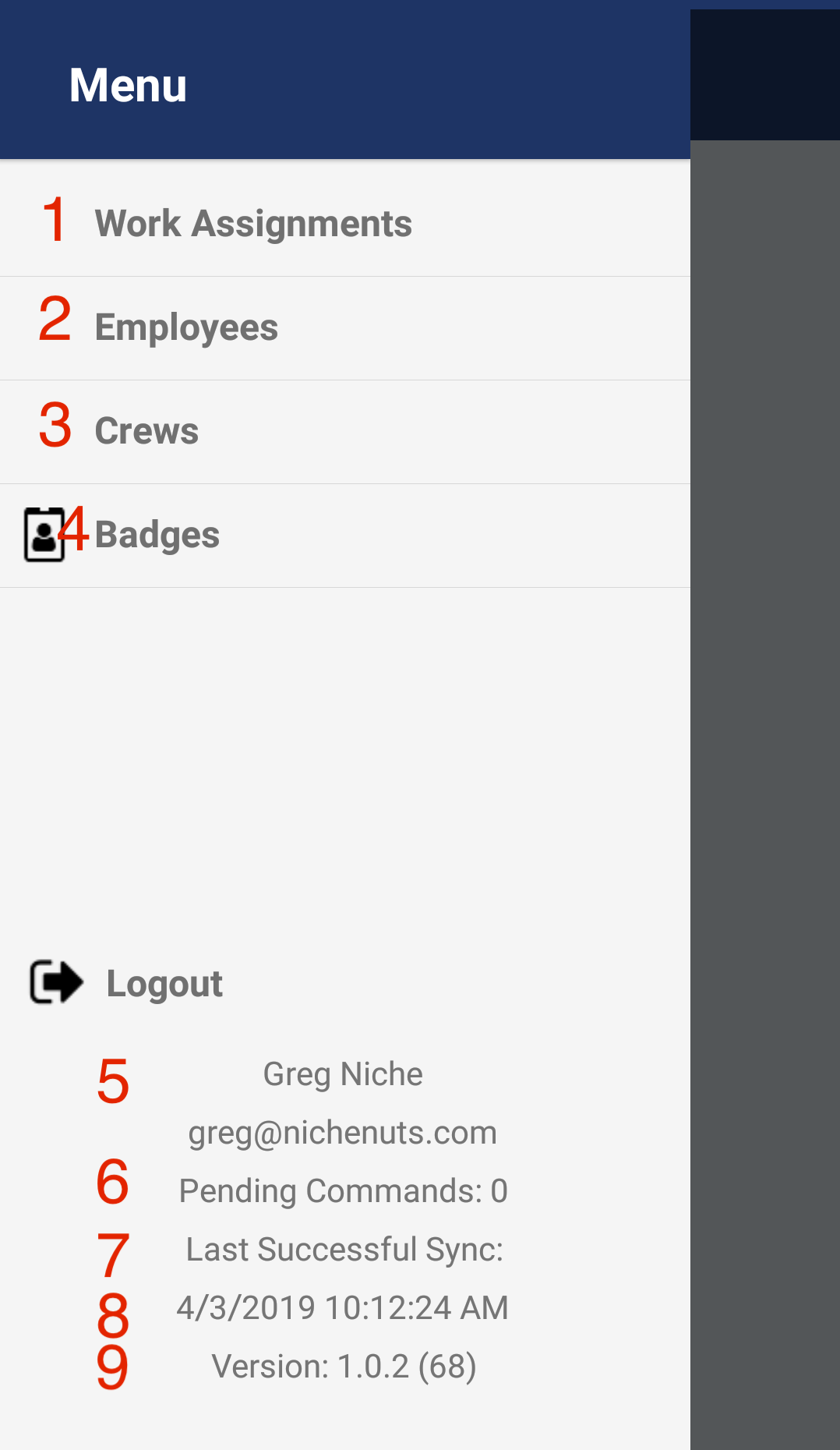
A slide out menu will display with multiple options. The first five items are options you can select. The other items display informational data.
1. Work assignments: This will display the list of work assignments associated with your user login.
2. Employees: This is where you can view employee information and link Pago badges to employees. How to link badges
3. Crews: You can view the crews and the crew member count for crews that your user login is associated with. How to add crews
4. Badges: In this screen you can scan a Pago badge to see whether it is linked to an employee. How to check badges
Logout: Selecting this option will log you out of Pago Timekeeper.
5. The name and email address of the currently logged in user displays below the Logout option.
6. Pending commands: If there is any data on your mobile device that has not uploaded to the Pago cloud servers, it will display here. Pending commands build up if your mobile device does not have an internet connection, or if it has a spotty connection.
7. Last successful sync: This is the last time your mobile device synced to the Pago cloud servers.
8. Version: This is the version of the Pago Timekeeper mobile app on your mobile device.
Comments
0 comments
Article is closed for comments.