
In this article, we will show you how to fix any mistakes you might have on the time work logs.
For our example, the crew boss accidentally inputted the wrong lunch time. We are going to show you how to fix these type of mistakes.
1. Tap the employee you would like to edit the work logs for.
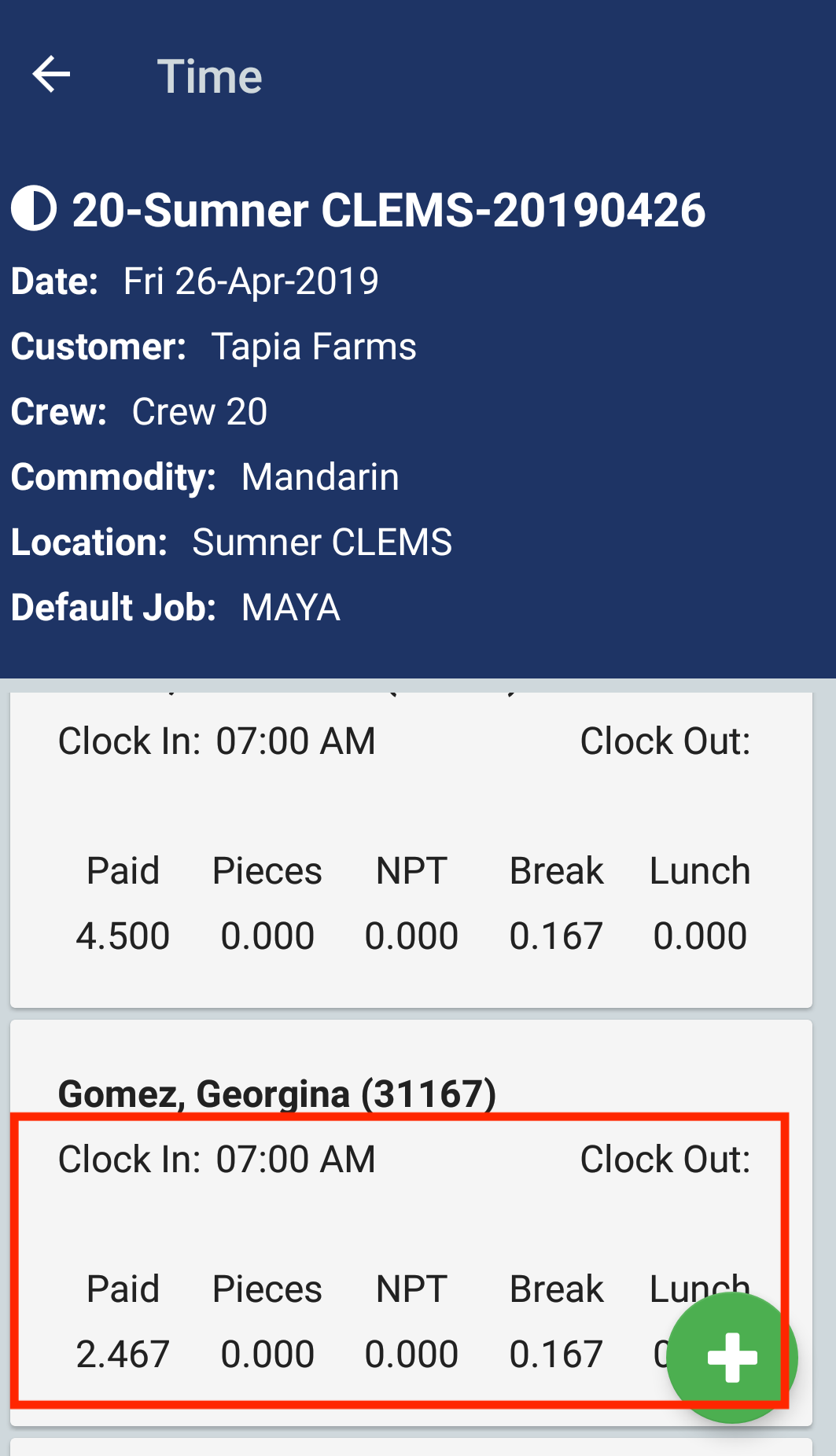
In this screen, you will see the employee's work logs. This screen is useful to review all of the employee's work logs for the work assignment.
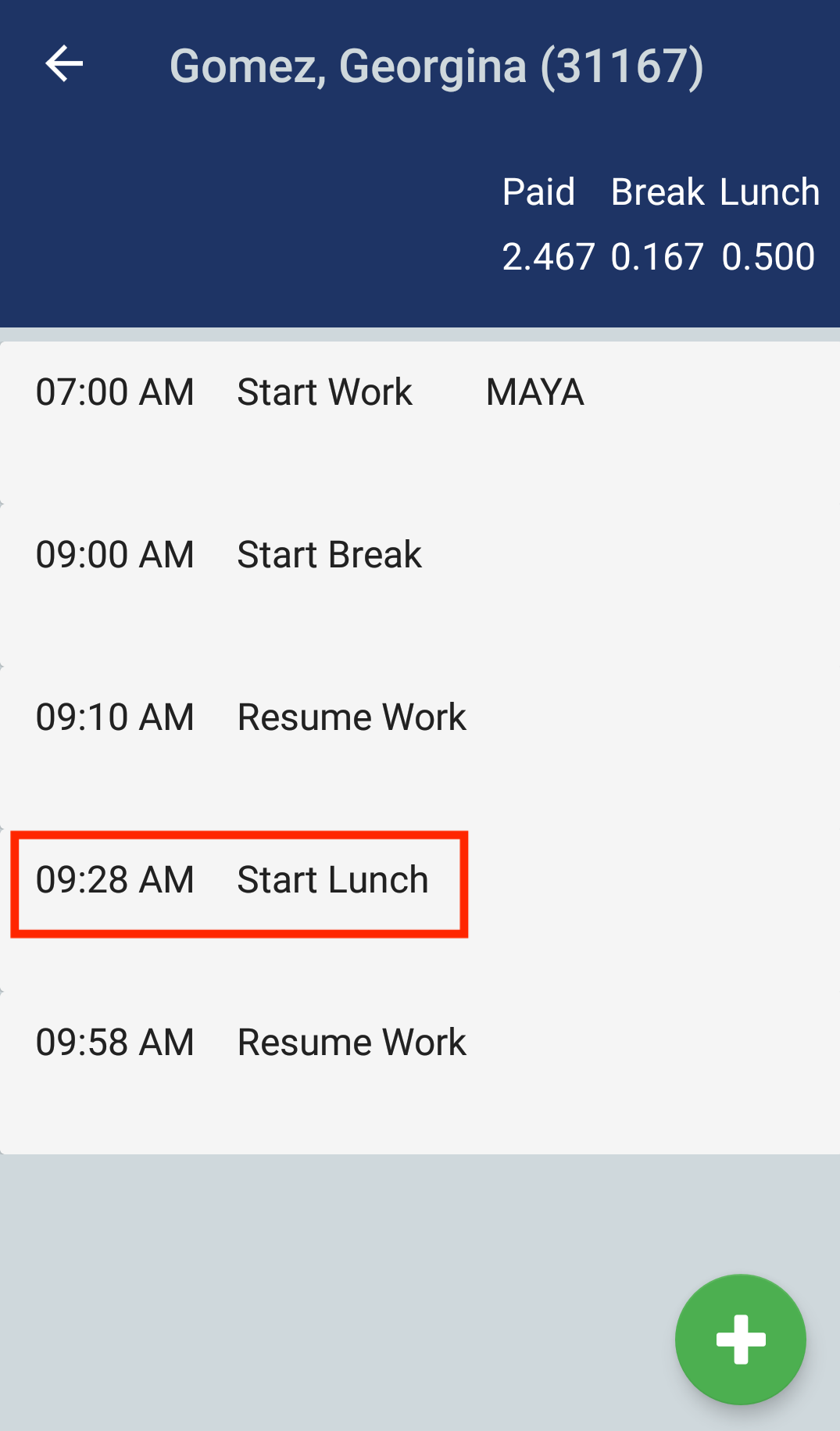
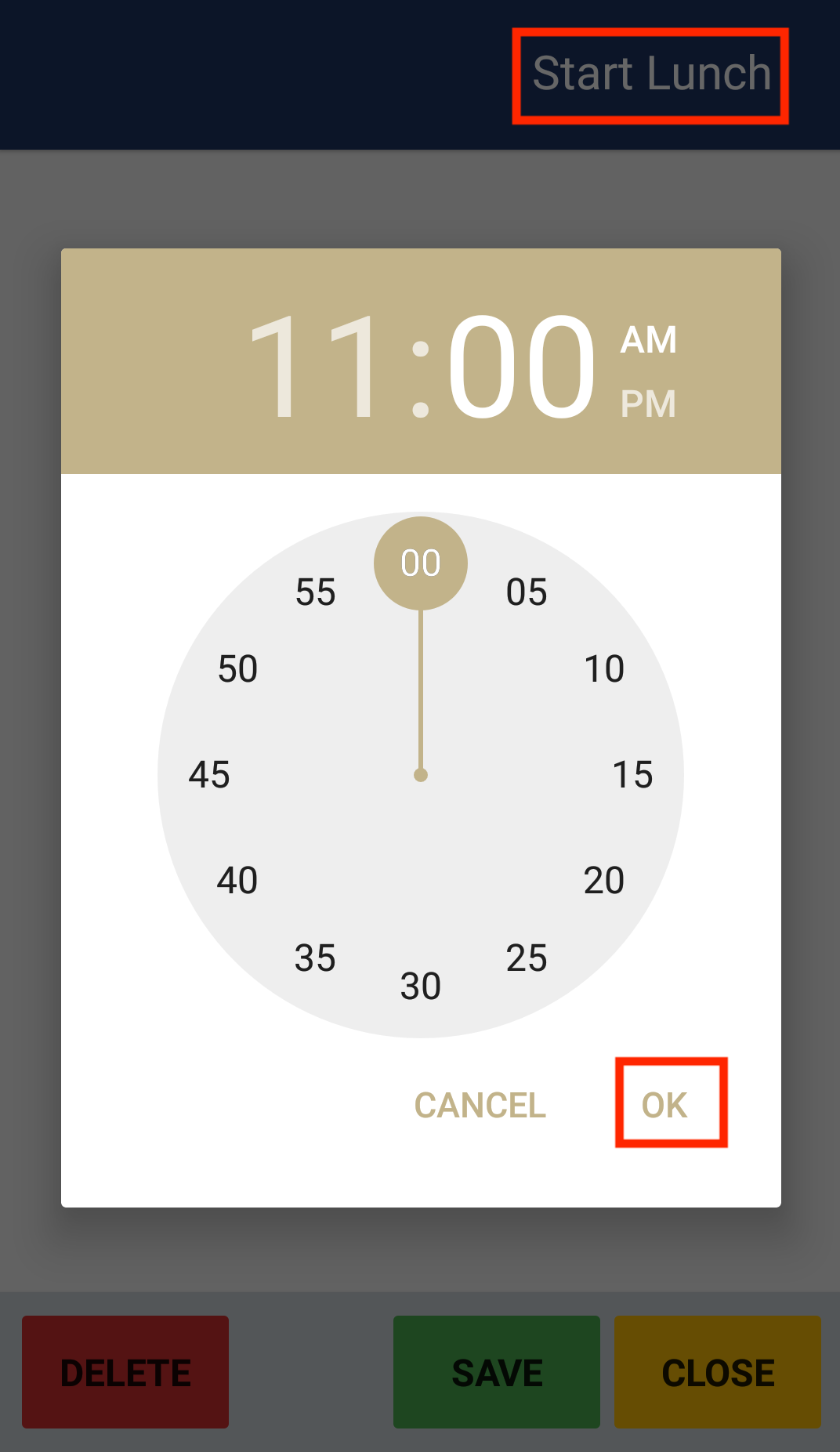
2. Tap the work log you want to edit. A new edit work screen will open. Tap the Time entry to change the time. A clock screen will open. You can tap the hour, minute, and AM/PM fields to change them. When you are done editing the time, tap the OK button.
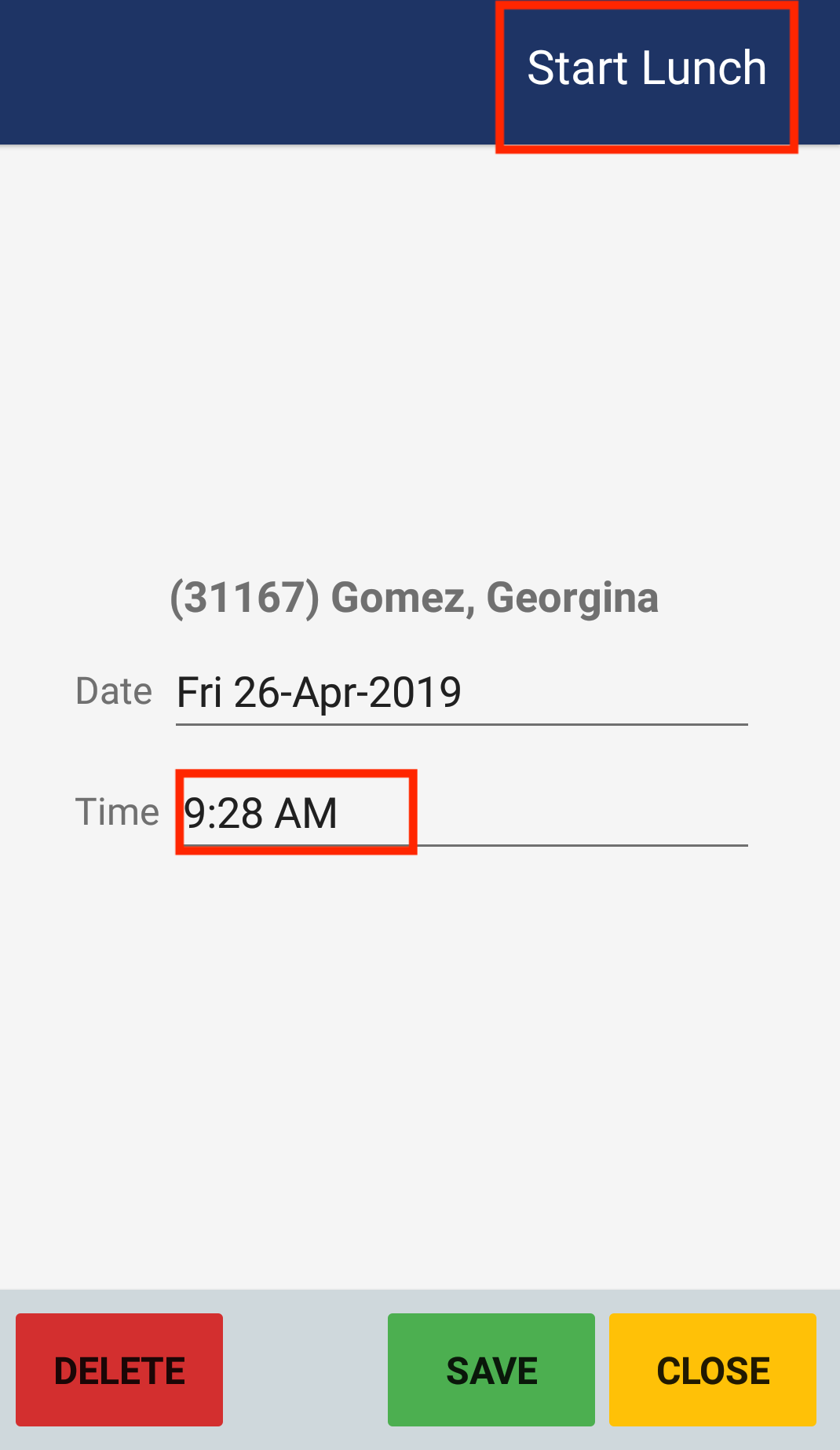
3. The new time will display. Now tap the Save button to save your changes.
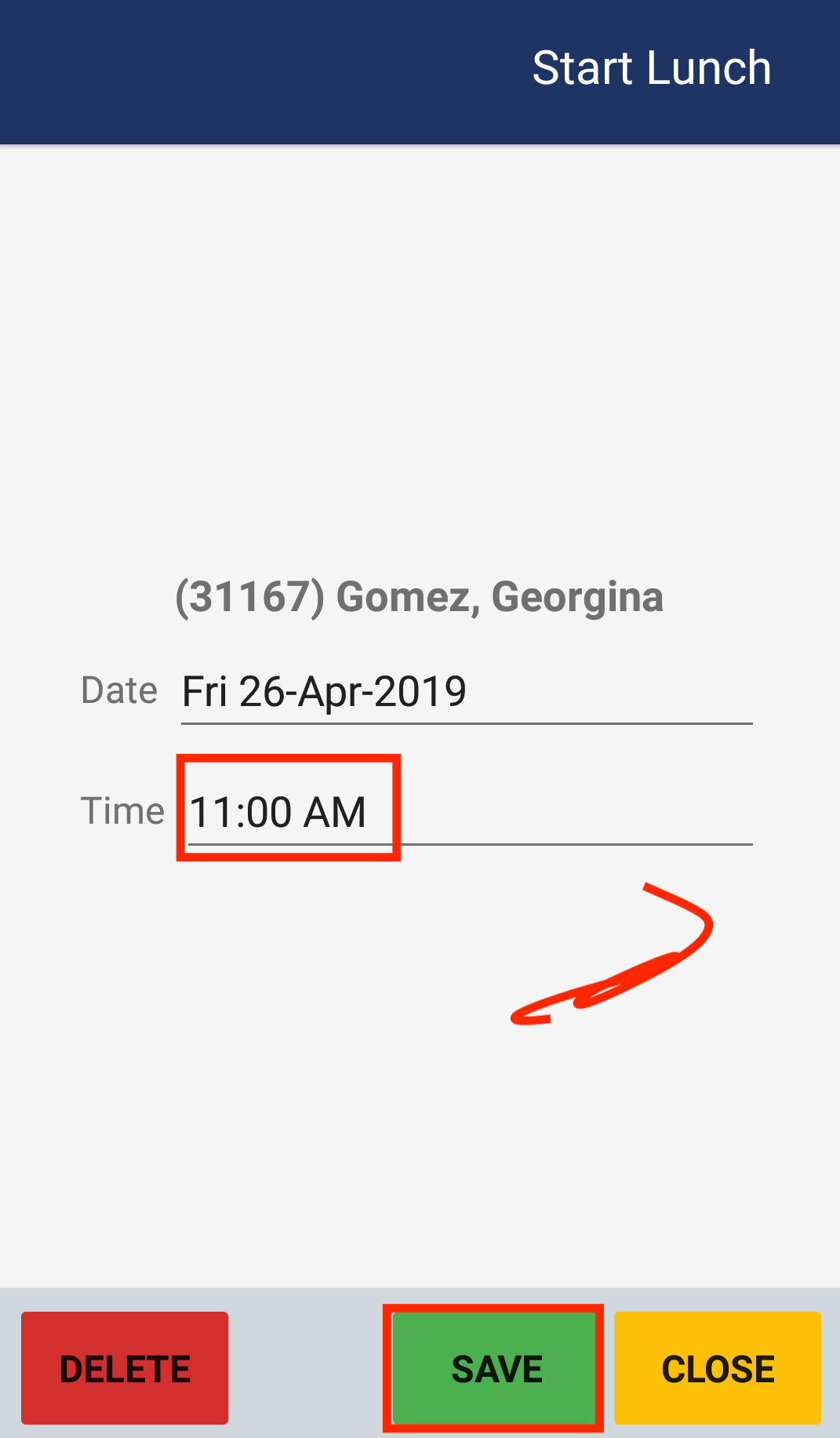
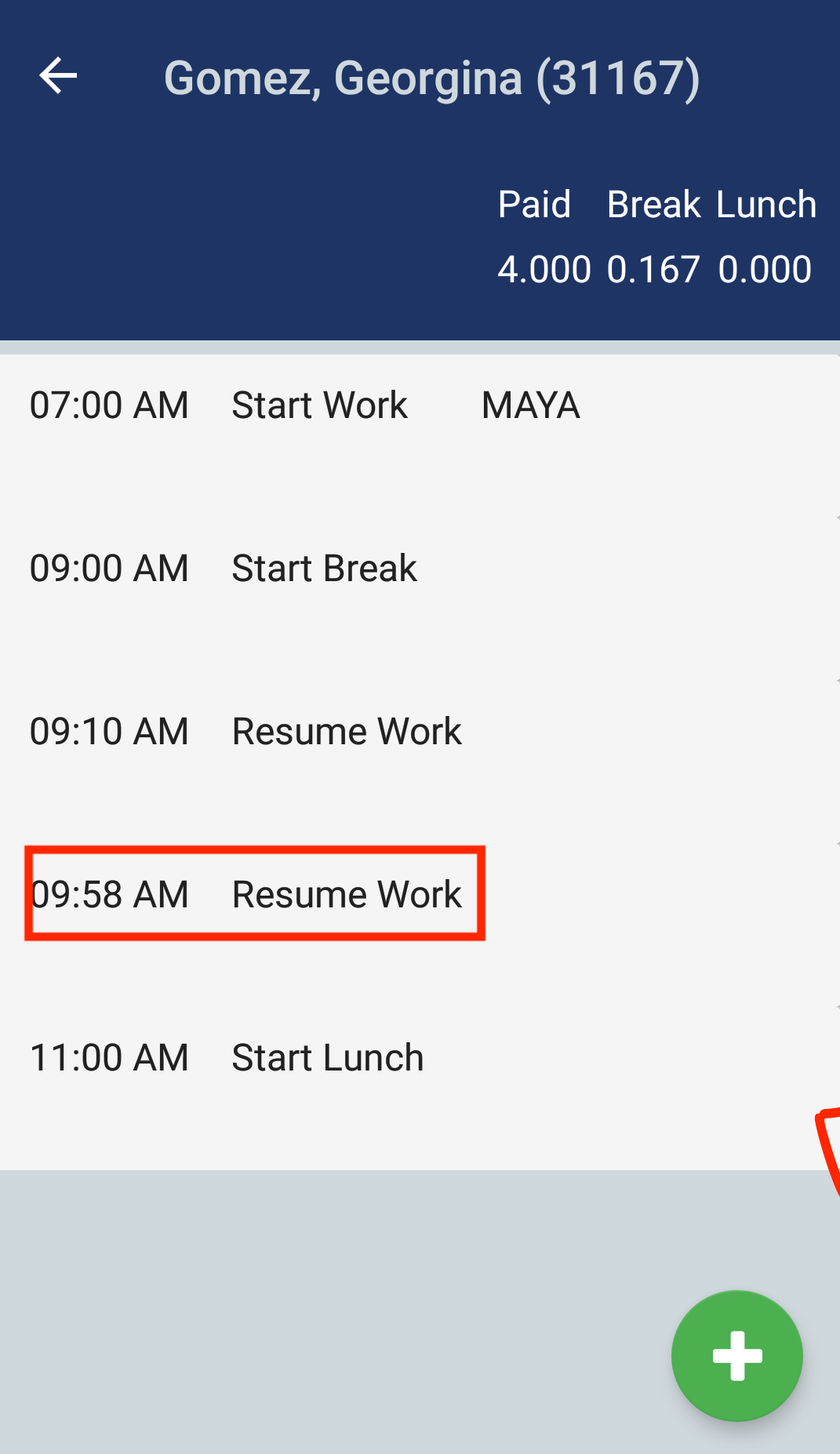
In this example, we changed a Start Lunch work log. Since the Start Lunch work log has a corresponding Resume Work work log, you will want to also edit the Resume Work work log time entry.
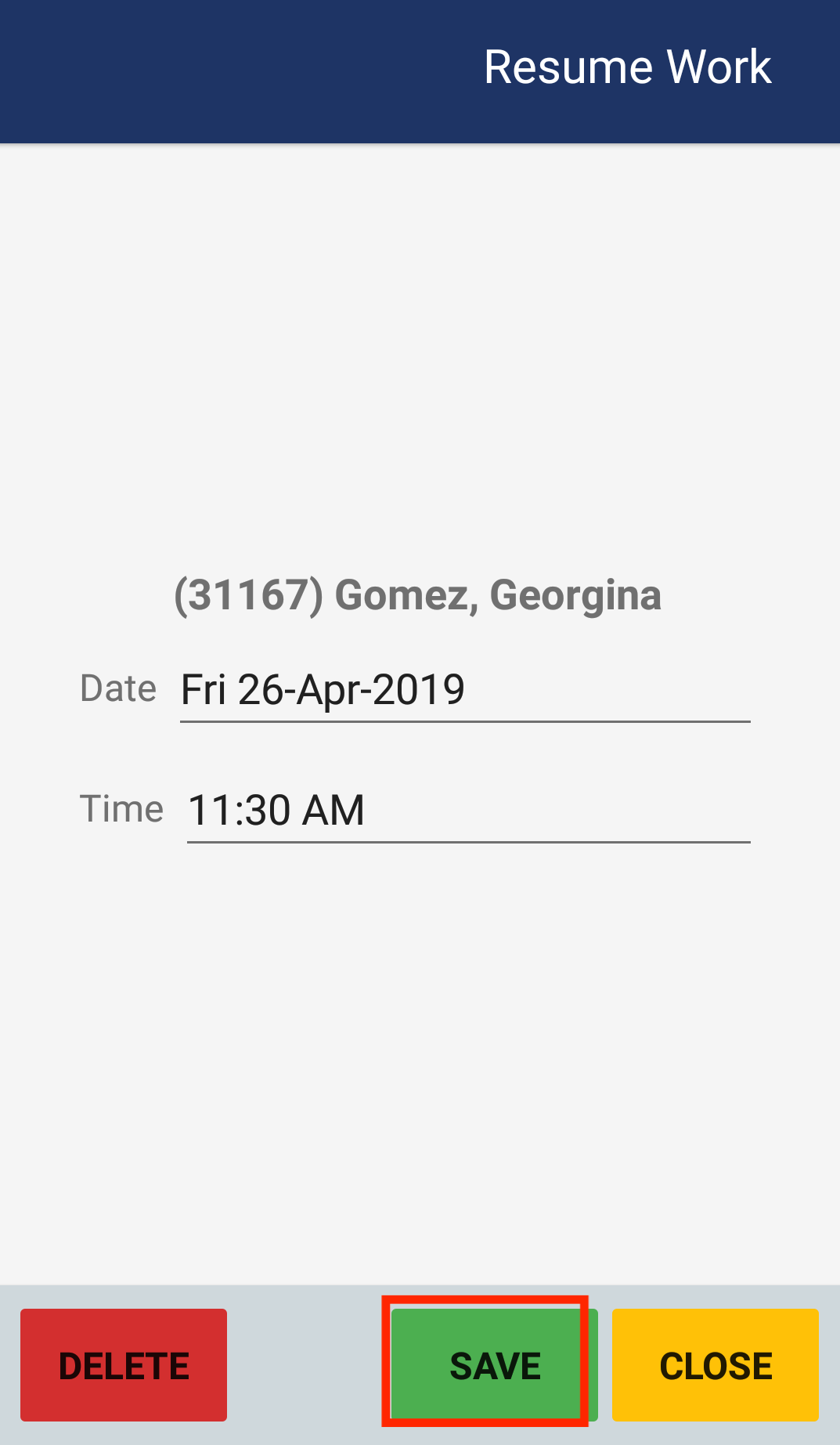
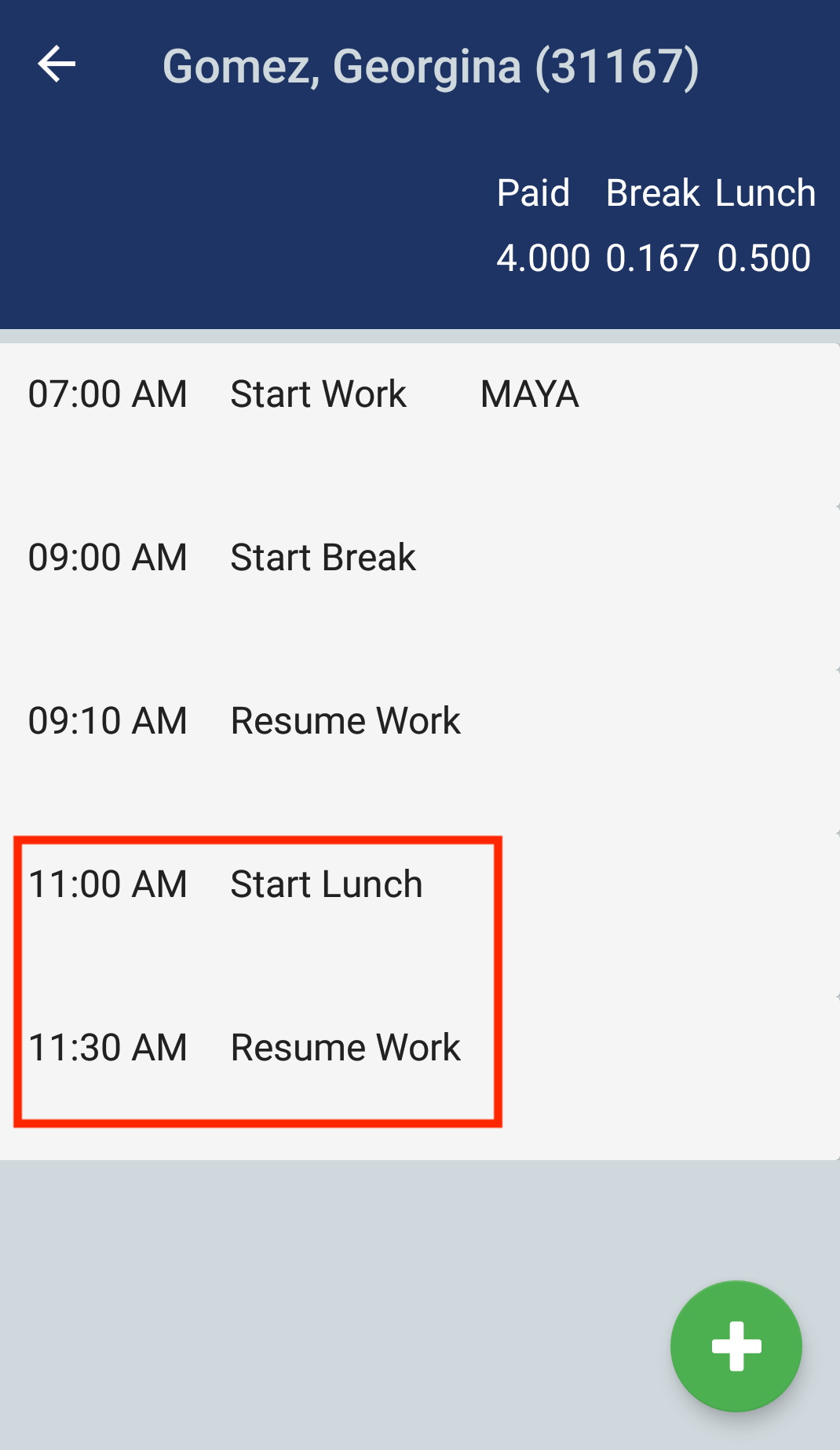
Now, you have the correct Start Lunch and Resume Work times.
Comments
0 comments
Article is closed for comments.