
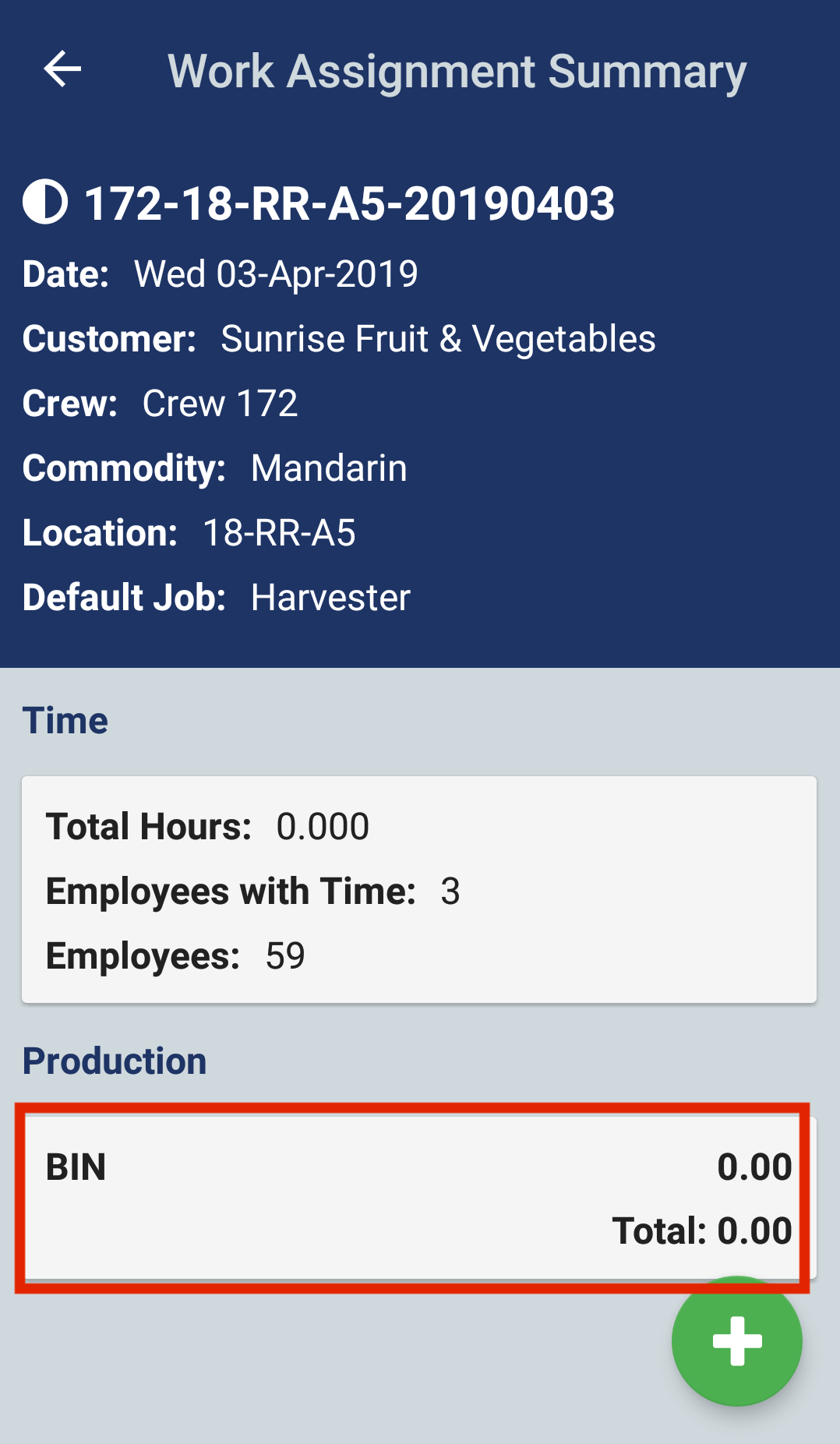
On the work assignment summary screen, you will see a Production section that shows production counts for the work assignment. Tap the production section to navigate to the production summary page. (Please note: our example uses BIN as the production unit. You may have different production units depending on your products)
Single Product Count
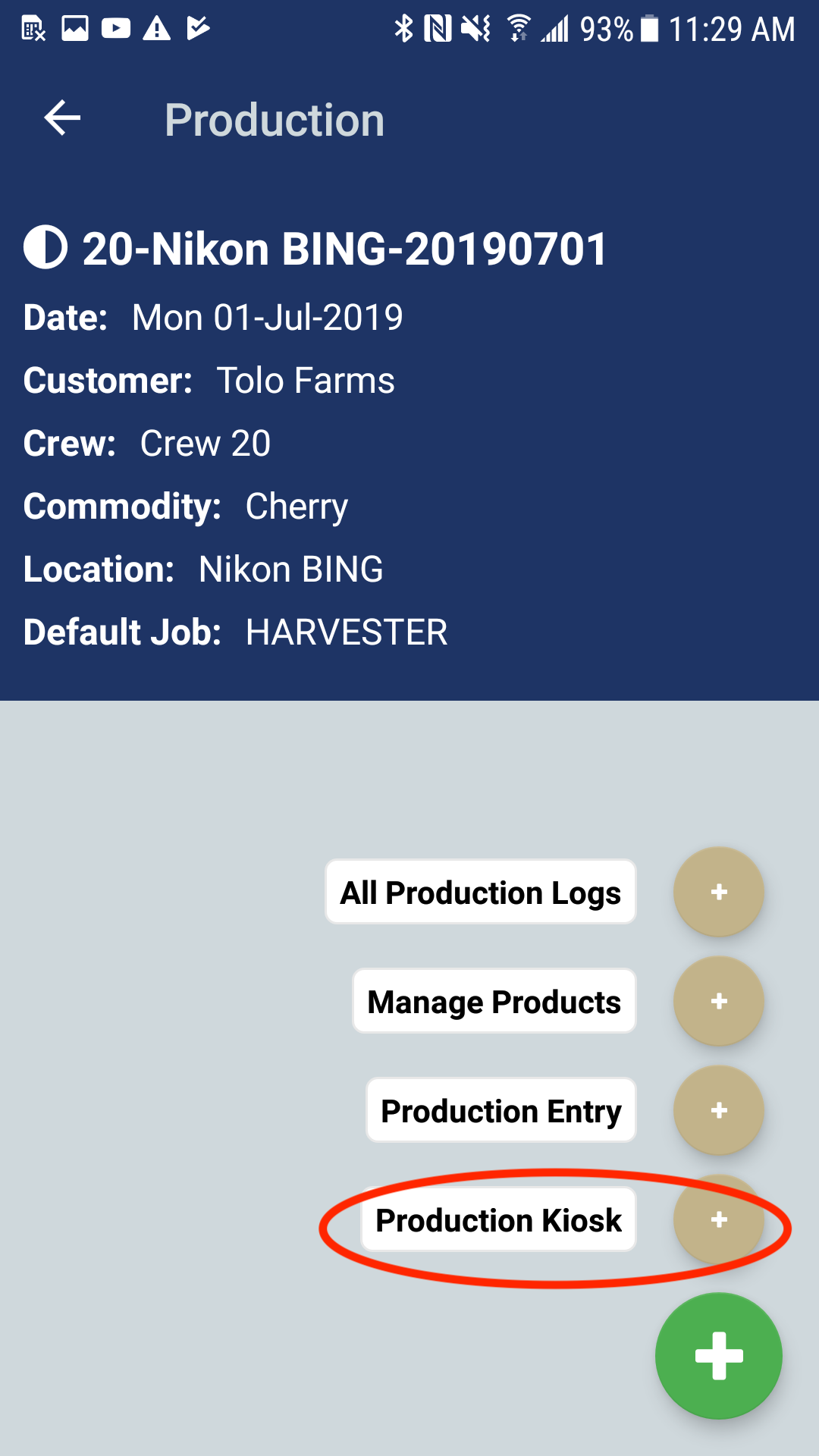
In the production summary screen, tap the green plus button to see a list of options. Select the Production Kiosk option to navigate to the single production count screen.
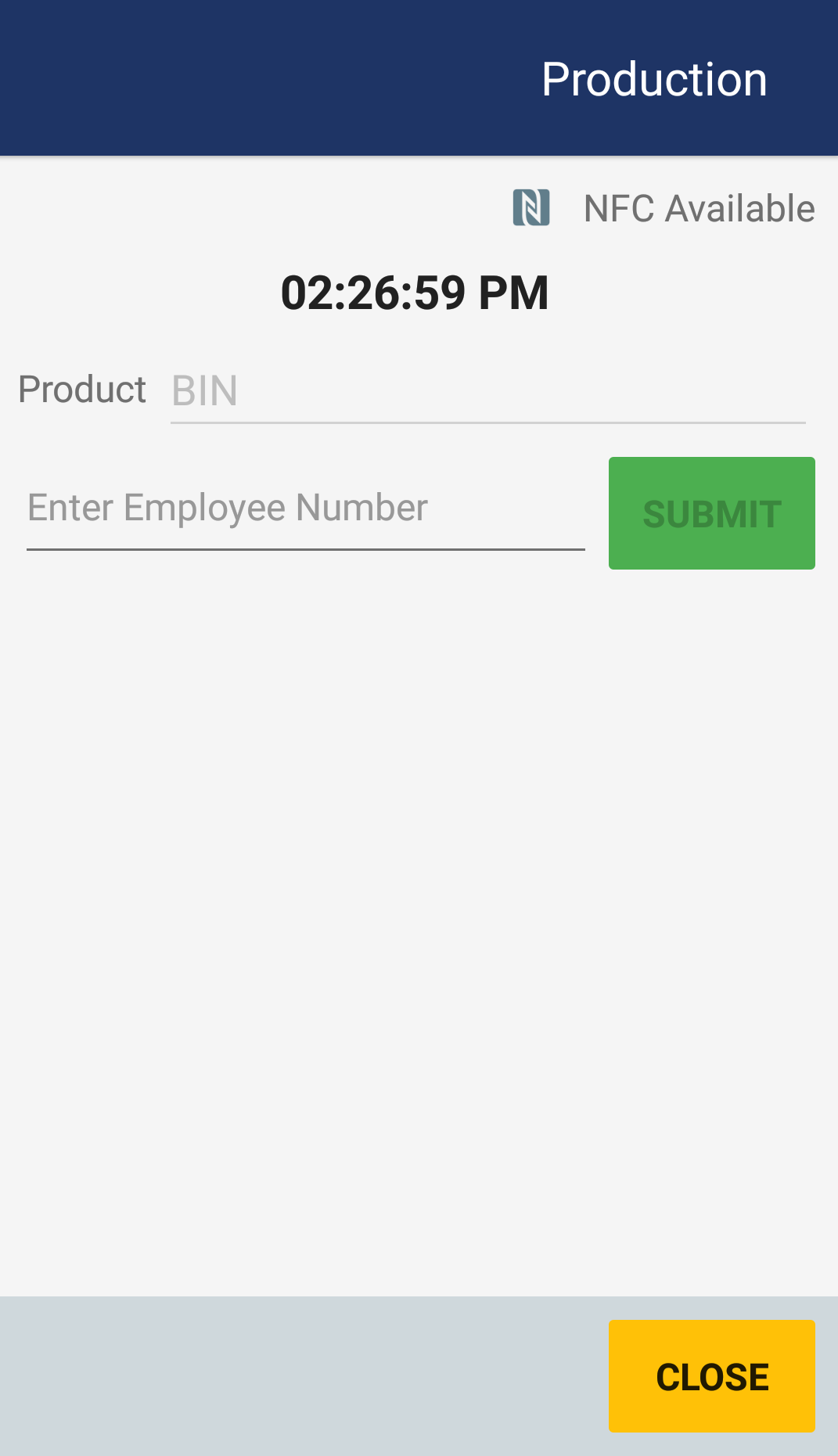
In the Single product count screen, you can record production counts by a quantity of one at a time. If your work assignment has multiple products, you'll need to select which product you want to count. You have the option of scanning employee badges to add a count of one, or you can enter employee number values as an alternative to scanning.
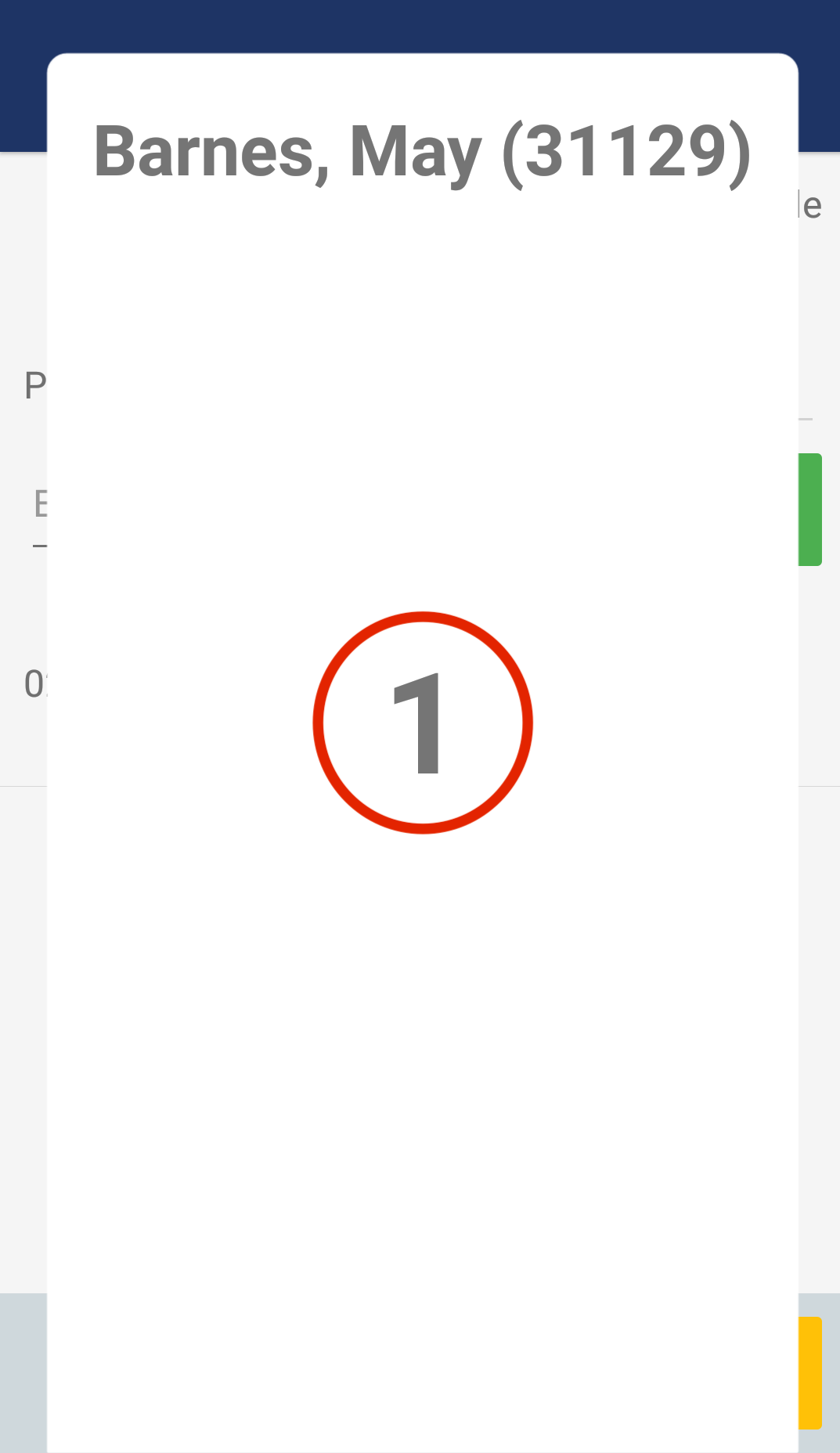
Once you scan an employee badge (or enter an employees id), a window will popup that displays the total production count for that employee for the work assignment. You will also hear a noise indicating that the employee badge was scanned successfully.
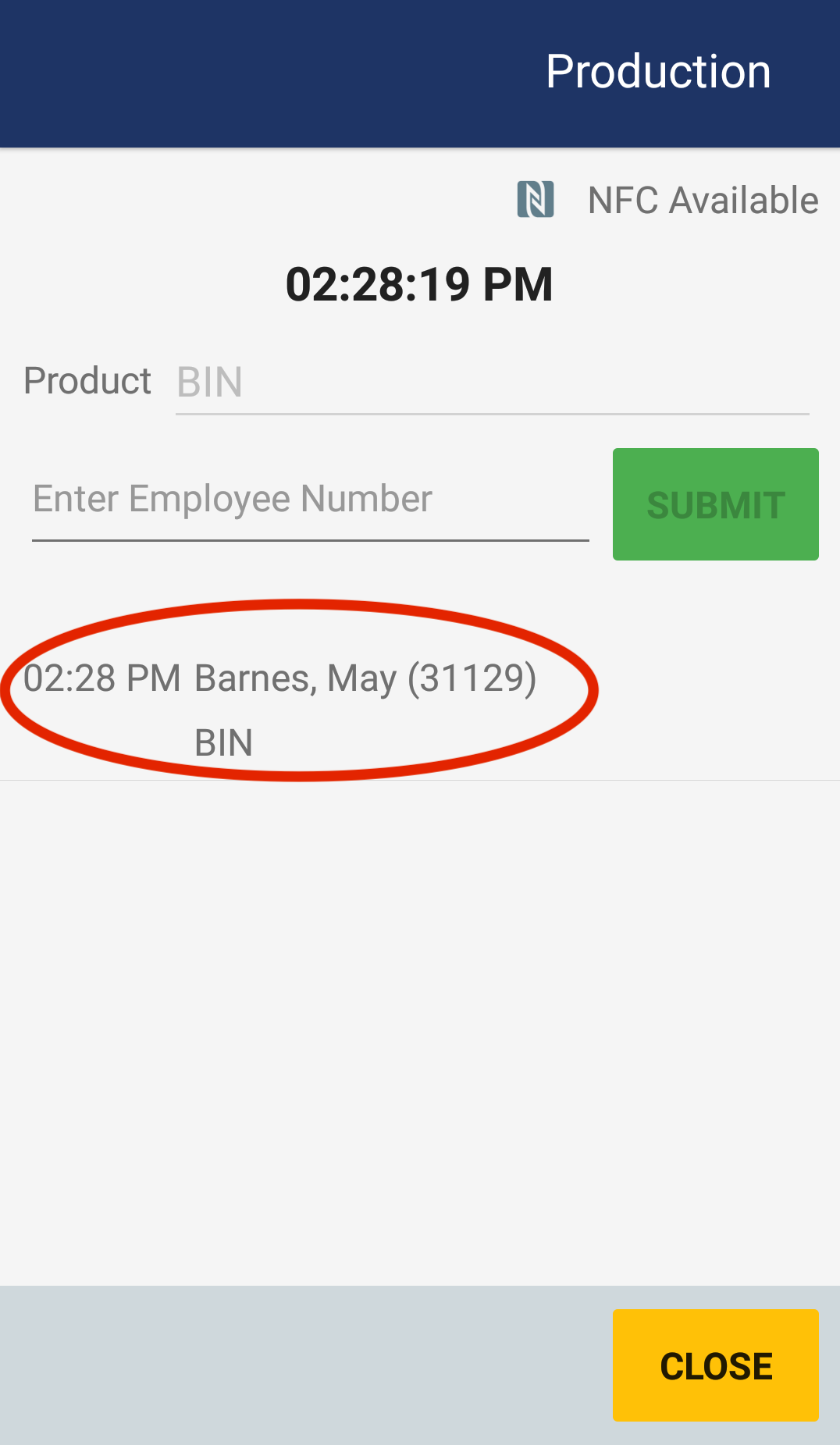
After a successful production count, the production screen will show the employee and a timestamp of the entry. You can stay on the production screen to continue scanning employee badges or entering employee numbers.
Multiple Product Count
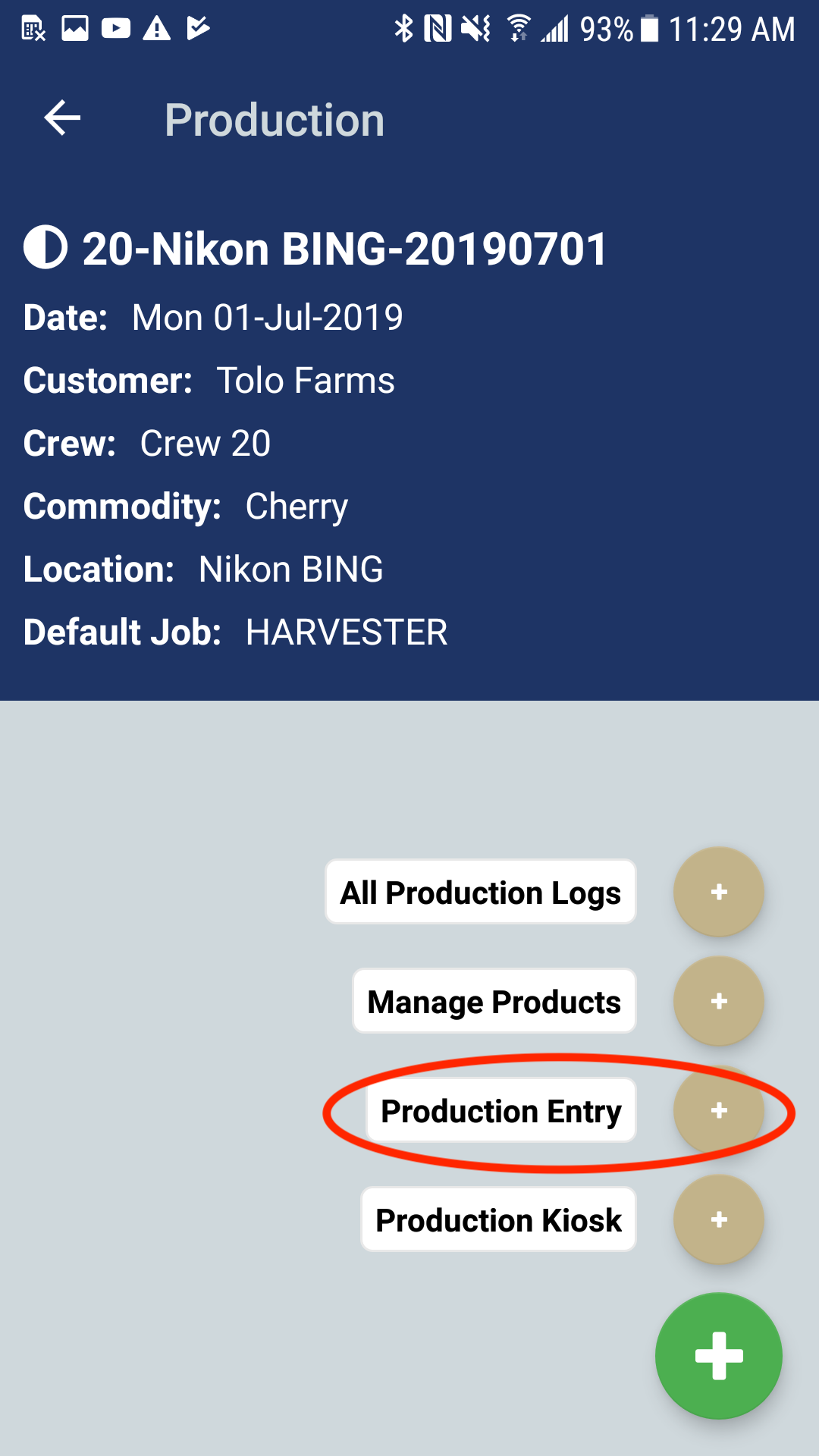
If you want to enter production counts of more than one at a time, then you will use the Multiple production count screen. Tap the green plus button and select the Production Entry option. You will be directed to the multiple production entry screen.
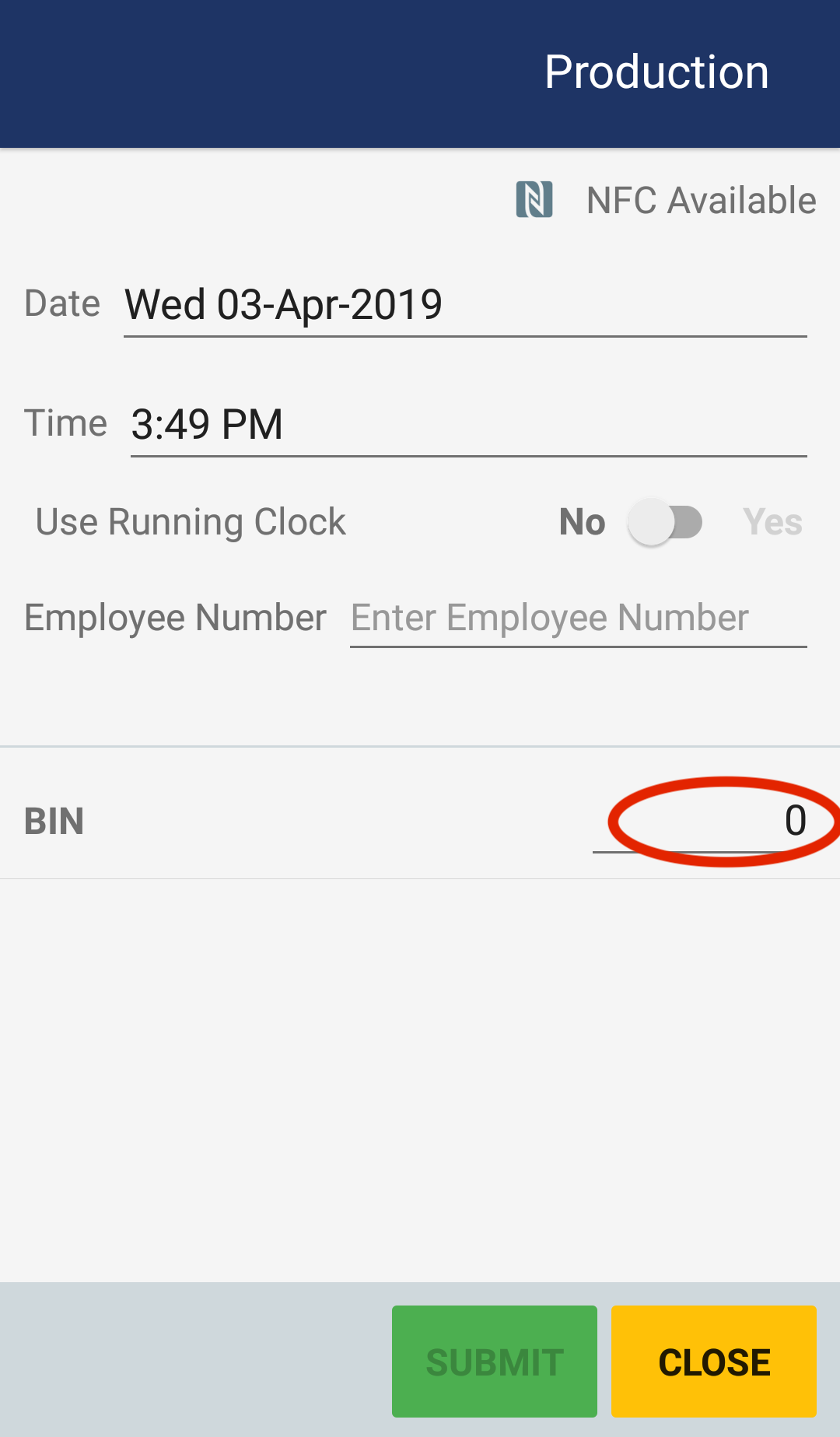
In the screen you can enter the production time or you can select the running clock option to use a running clock. You can scan an employee badge or enter an employee number to select an employee. Then you can tap the quantity field and enter a quantity for the product. If your work assignment has multiple productions, then each product will display in the counting section of the screen.
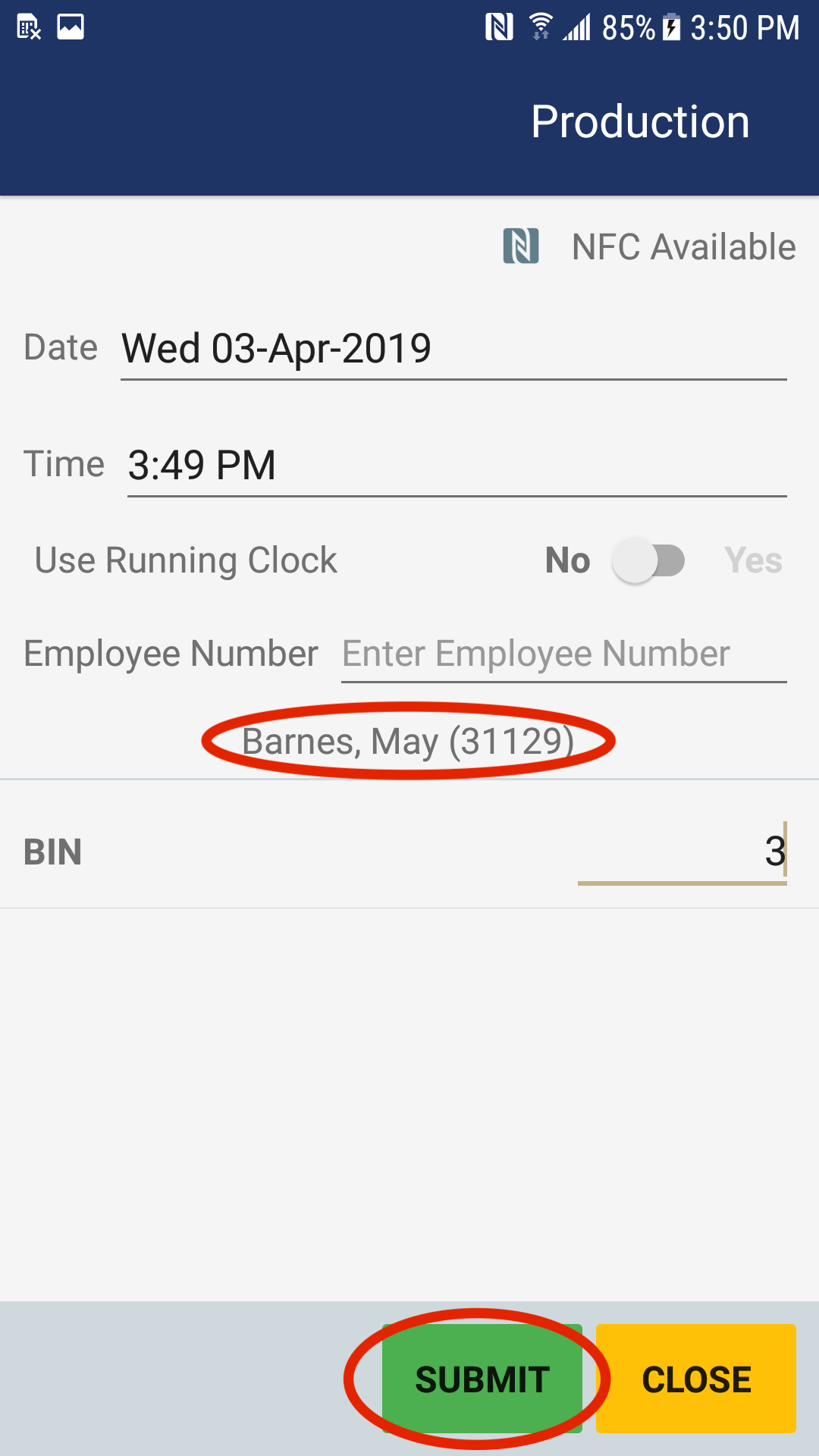
Once you have changed the production counts, you can tap the Submit button and the production count will be registered. You can repeat the process of scanning employee badges or entering employee numbers, and entering production counts.
Comments
0 comments
Article is closed for comments.