
Introduction
Occasionally employees are hired and start working before they are added to the payroll system and receive an Employee Id in the payroll system. These employees can be added to Pago as "temporary" employees, and time and production can be recorded. Once employees are added to the payroll system and receive an Employee Id, the temporary employee record in Pago can be updated so that payroll is processed successfully.
1. Create "temporary" employees and assign them to crews
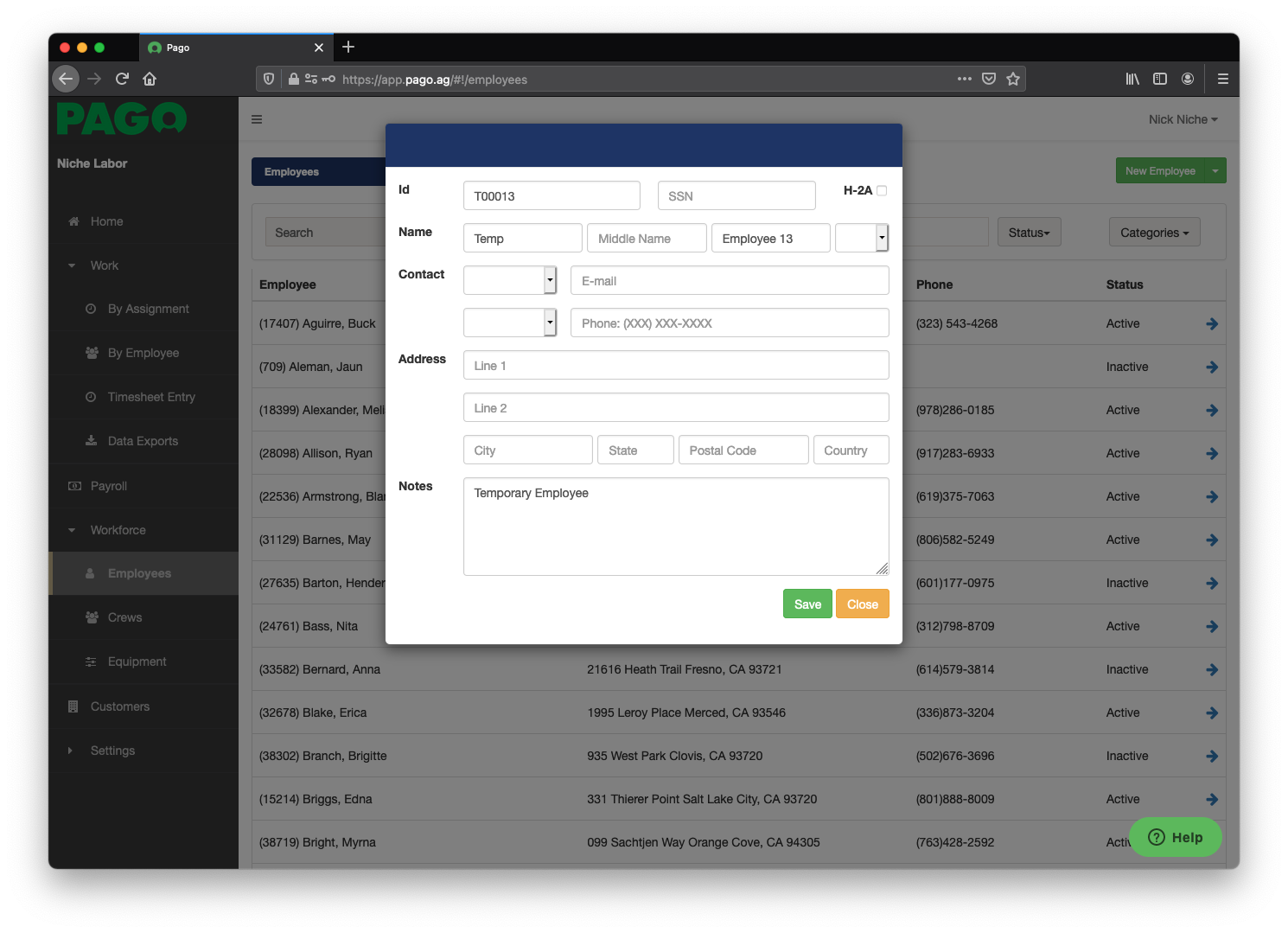
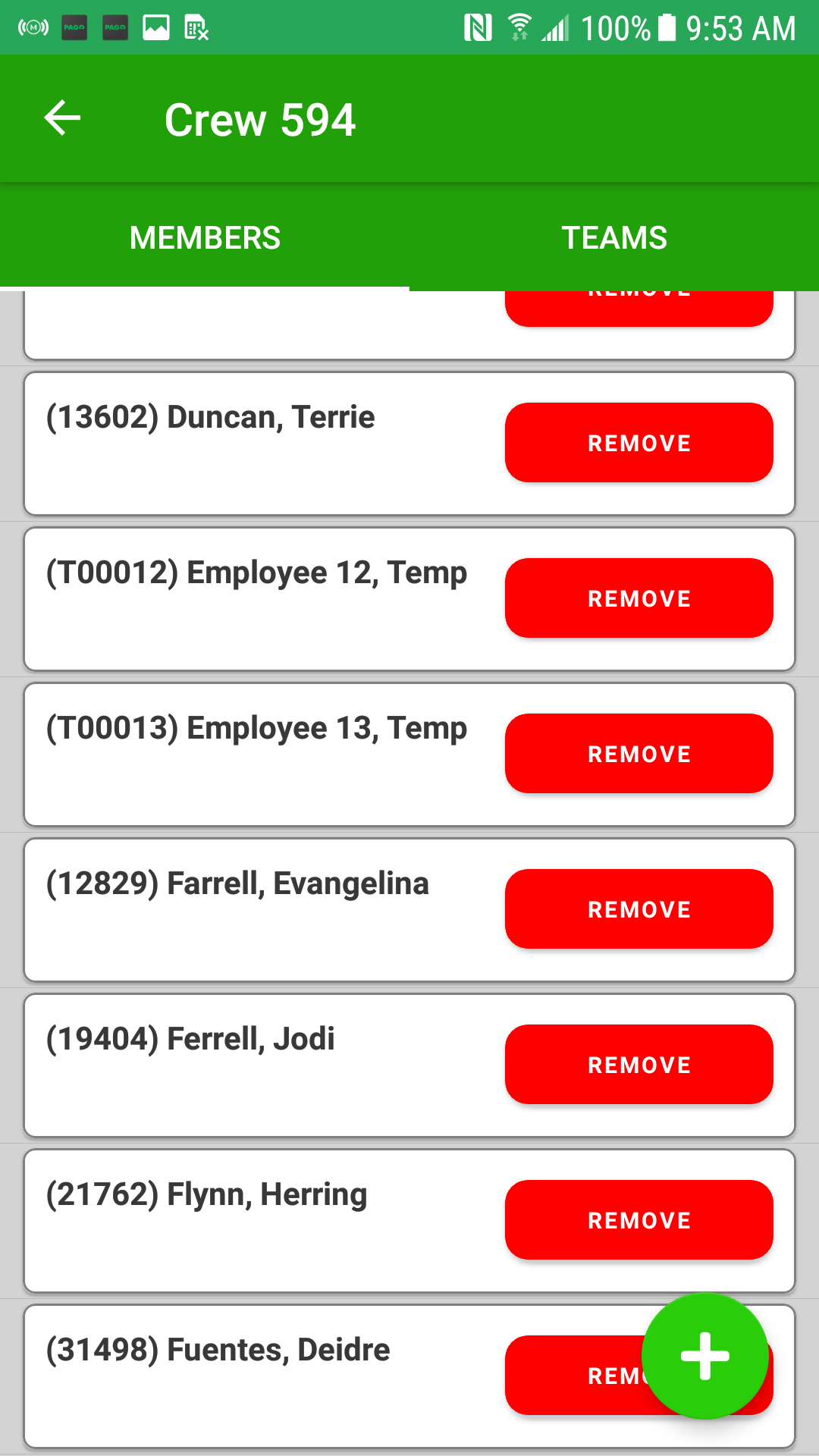
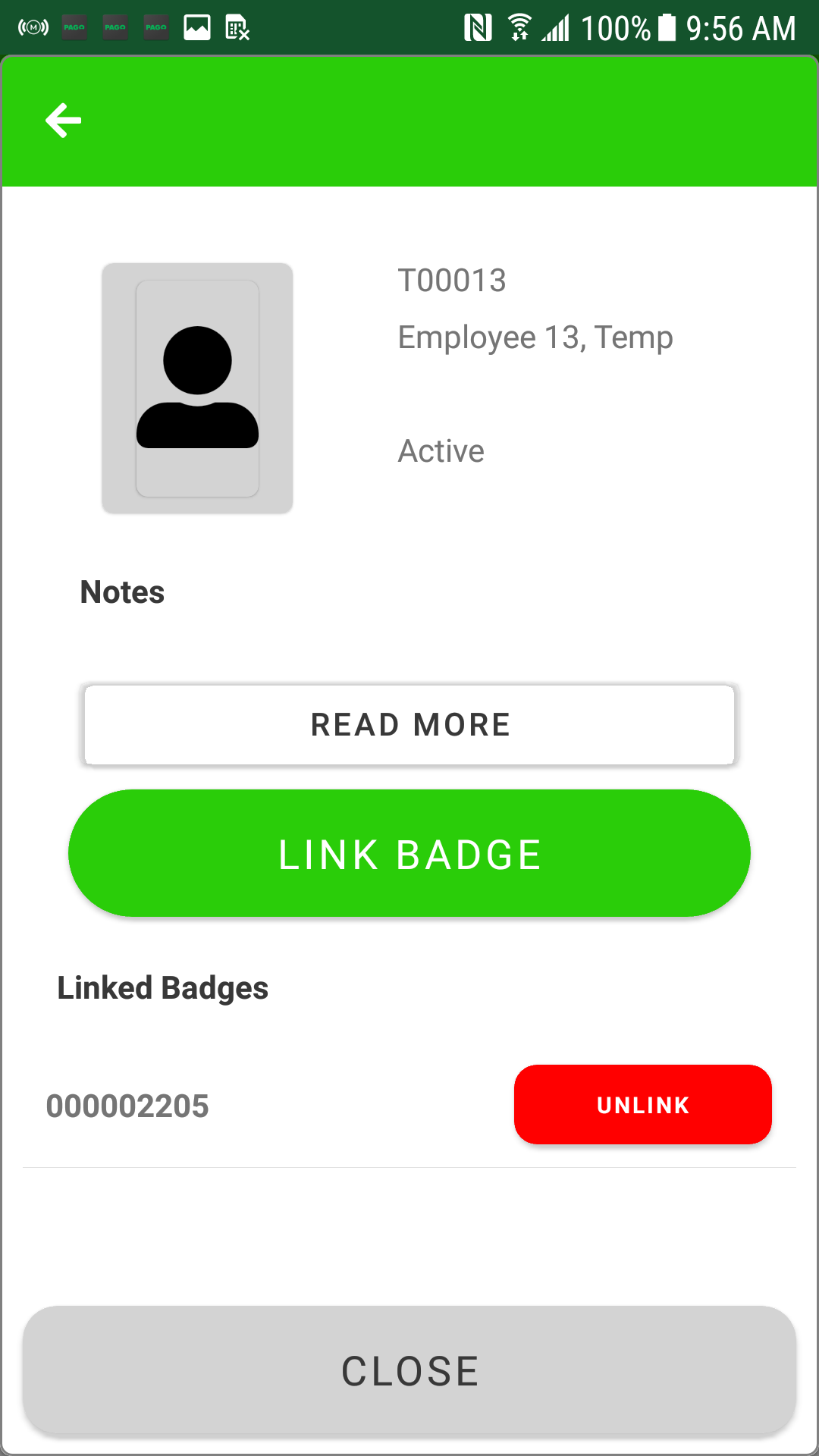
2. Link a Pago badge to a temporary employee
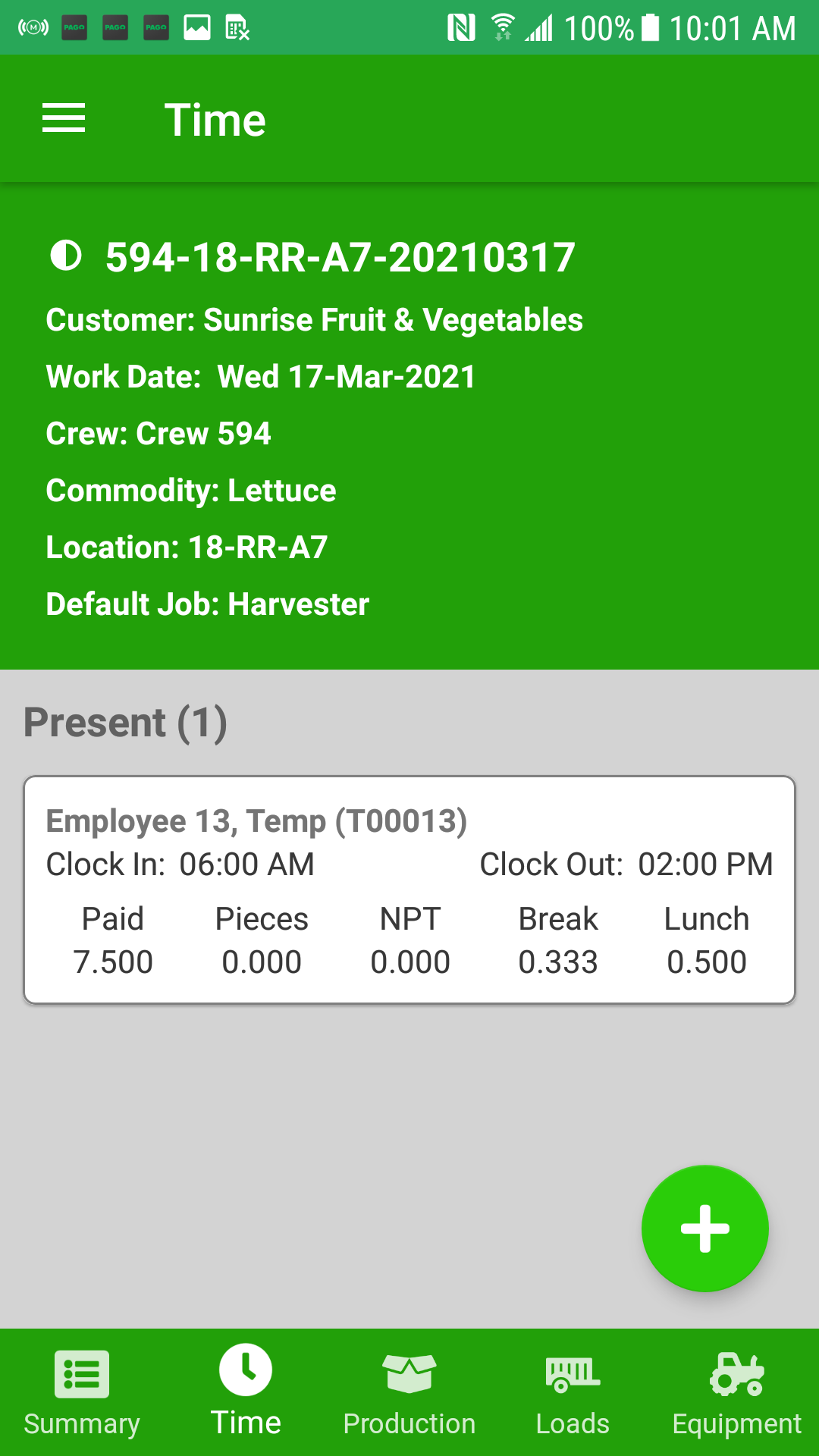
3. Record time and production for the temporary employee
4. Add employee to payroll system
When a temporary employee is added to the payroll system, a permanent Employee Id will be assigned.
5. Update temporary employee to set payroll employee id
Once you have the actual Employee Id from the payroll system, you can edit the temporary employee in Pago and update them with the Employee Id from the payroll system and the employee's actual name.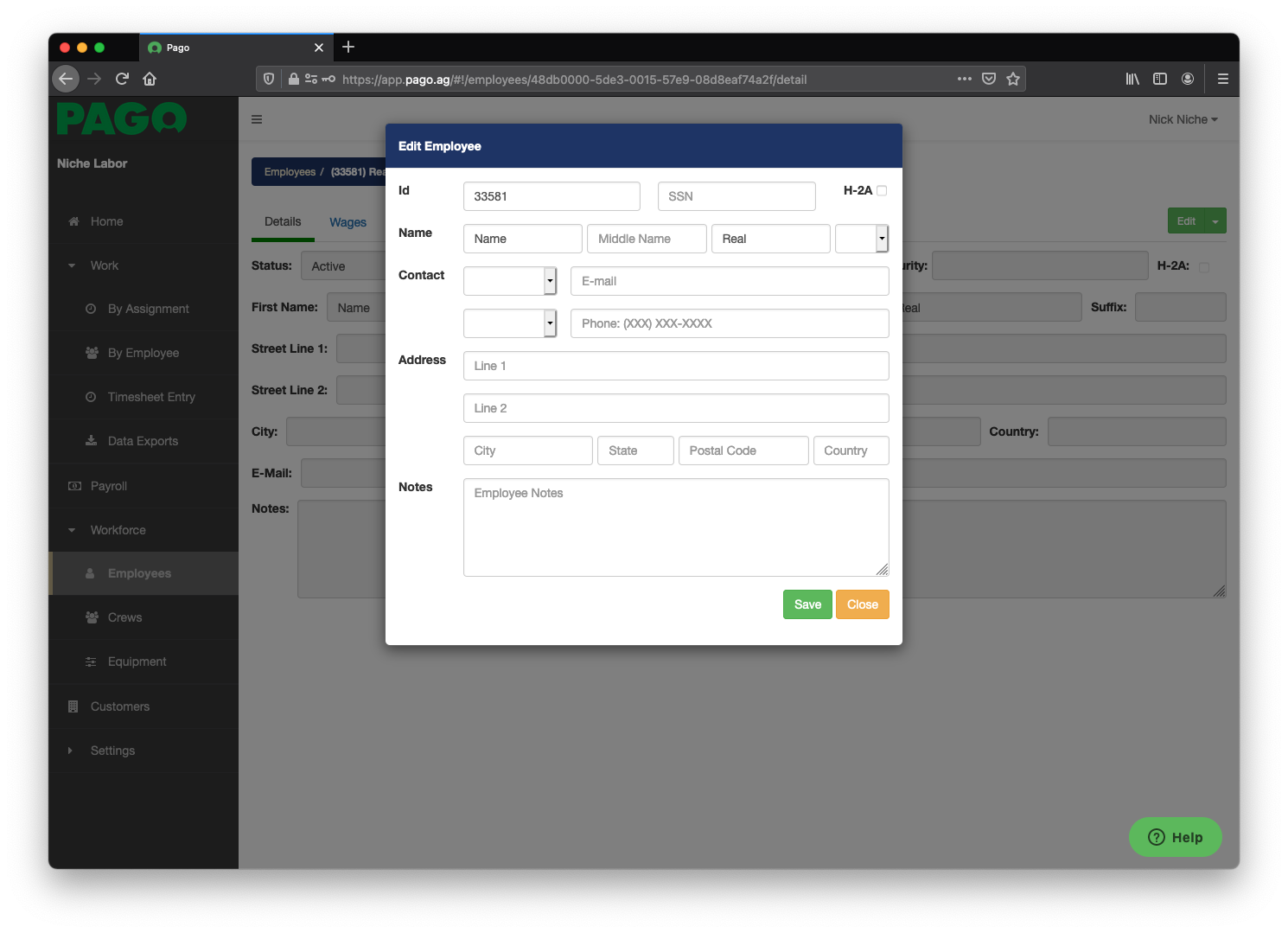
6. Change status of work assignments
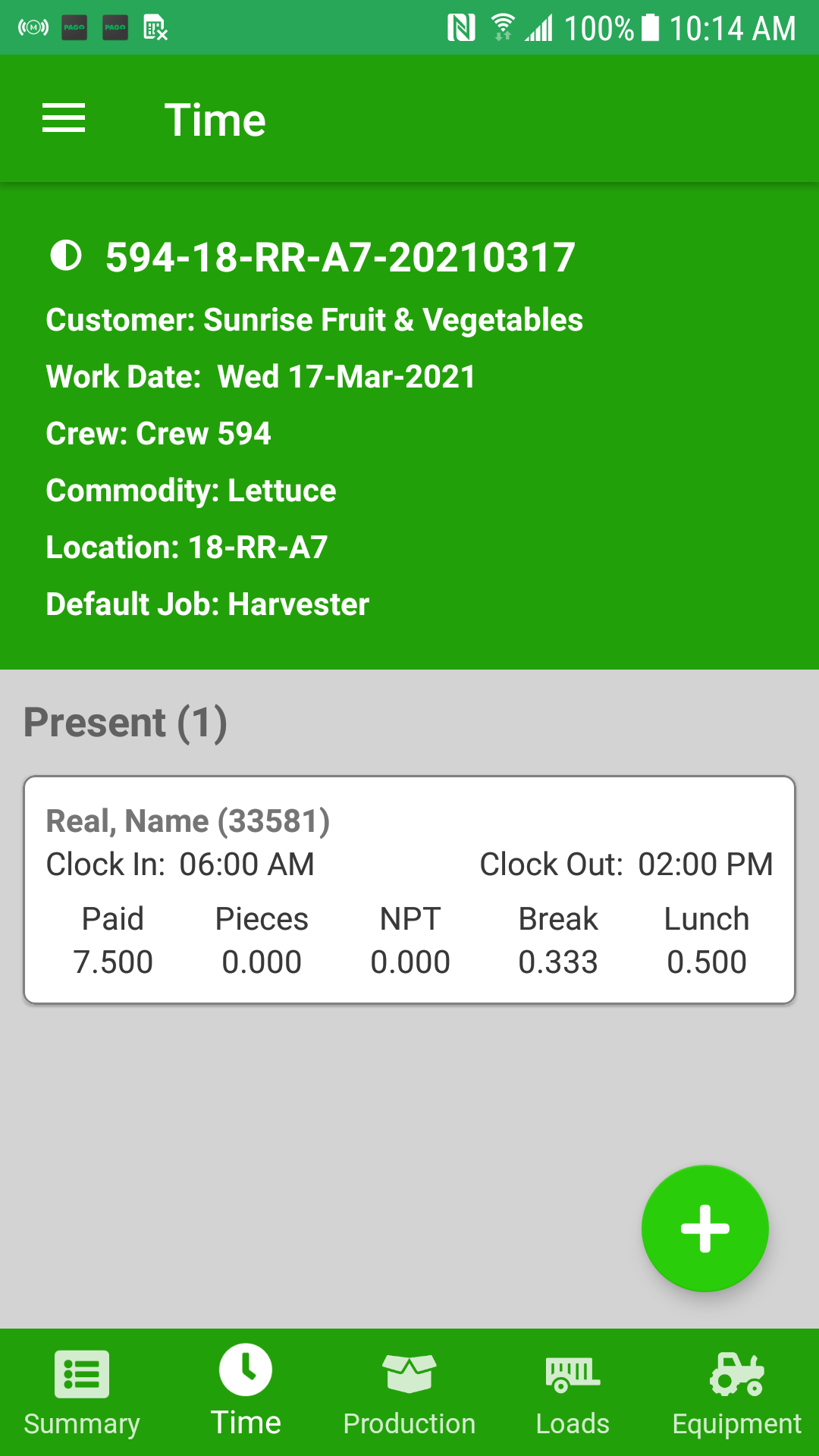
After you've changed the employee's Employee Id and Name, you need to locate all of the work assignments that the temporary employee clocked into. You need to change the Status of each work assignment. When you do this, Pago will automatically update the employee's Id and Name in the work assignment.
IMPORTANT NOTE: Following these steps will not update any already existing payroll batches. If the temp employee is included in any existing payroll batches, you need to Cancel each payroll batch and recreate it. Otherwise, the payroll batch will include the employee's Temp Employee Id instead of their actual payroll Employee Id.
Comments
0 comments
Article is closed for comments.