
Attached is a template employee import CSV file. Rearrange your CSV file to match the columns. Only the columns in bold are required DELETE THE FIRST RECORD WITH THE COLUMNS DESCRIPTION BEFORE IMPORTING.
An employee can either be added manually in Pago or can be imported from your payroll software system (Datatech, Famous Software, etc.) In this article we will be importing employees.
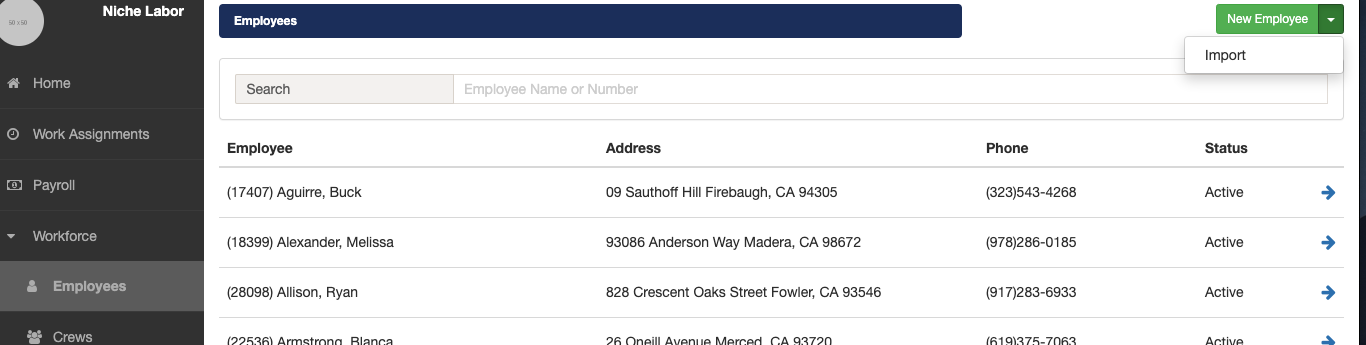
1. Open the Employees page. Click the down arrow adjacent to the New Employee button and then select the Import option.
2. Click on the Choose File button to open a file selector window. Navigate your computer's file system to select the employee import file. After you have selected the appropriate file click on the Import button to start the employee import process.

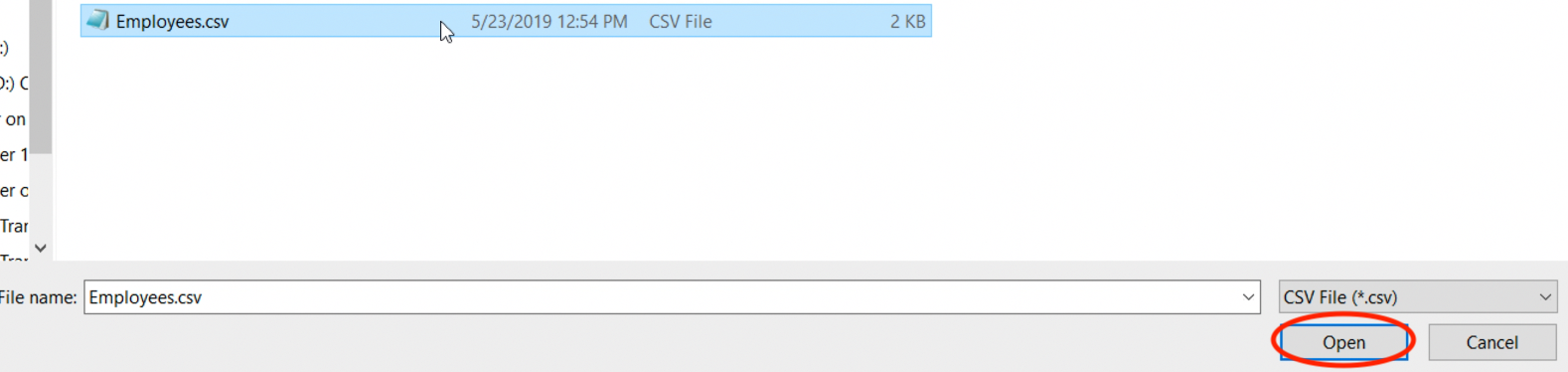

The employee import process will open the import file and process each record. If an employee already exists in Pago, the import process will check to see if any of the employee's information is different and update Pago accordingly. If an employee does not exist in Pago, the import process will add the new employee.
File Format:
The order of columns in the import file is significant. Data must be provided in the order described below. If you want to omit a data field, you must still include the data field’s comma delimiter.
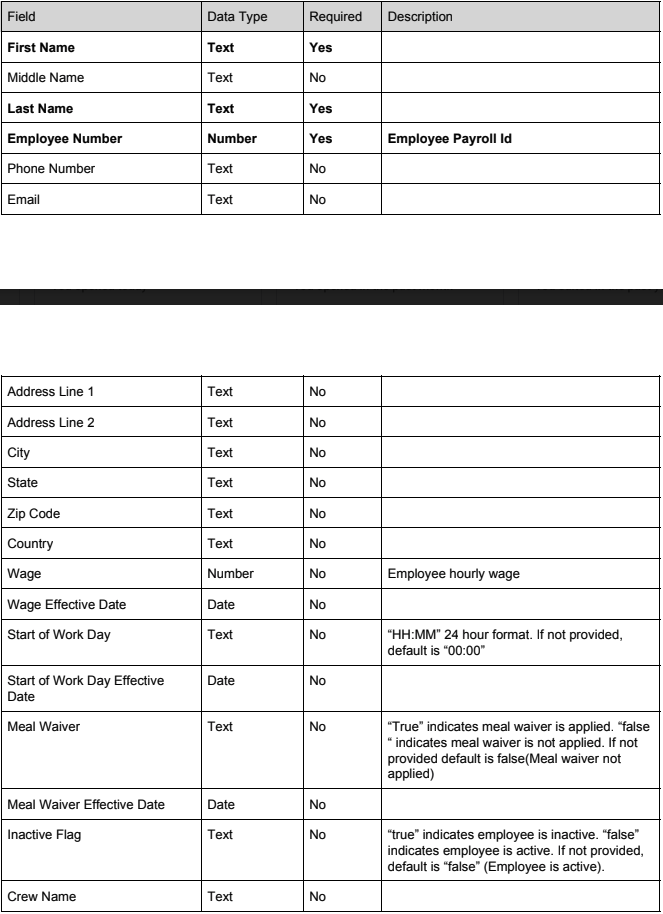
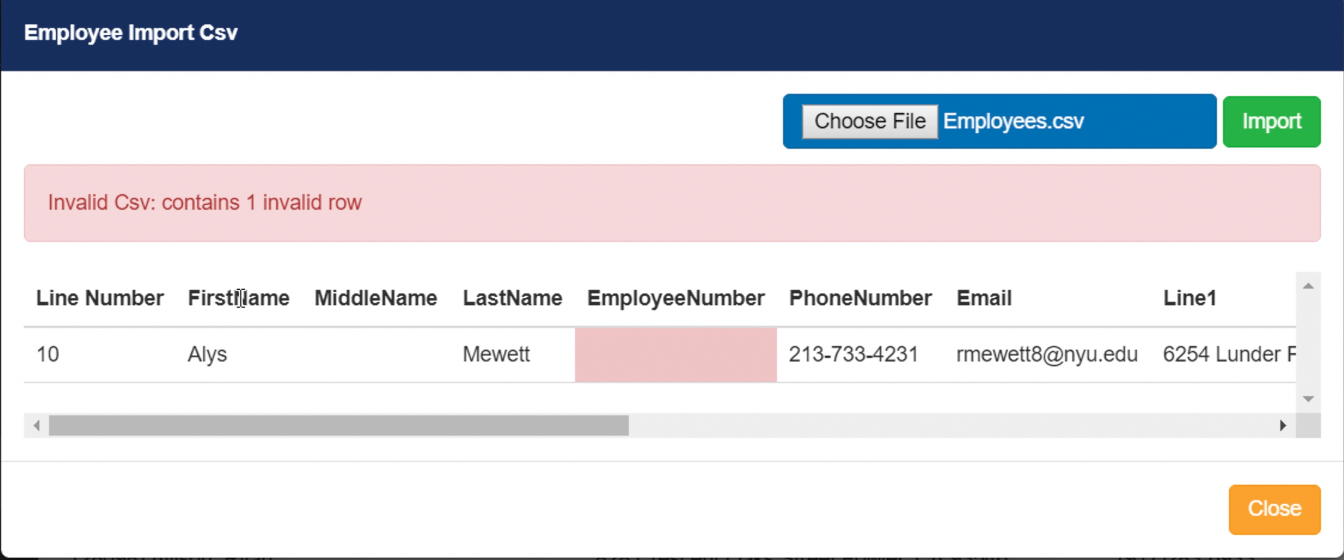
If there are any format errors with the employee import file, Pago will display an error message and the entire employee import file will not be processed. The import spec file now has crew and meal waiver.

Comments
0 comments
Article is closed for comments.